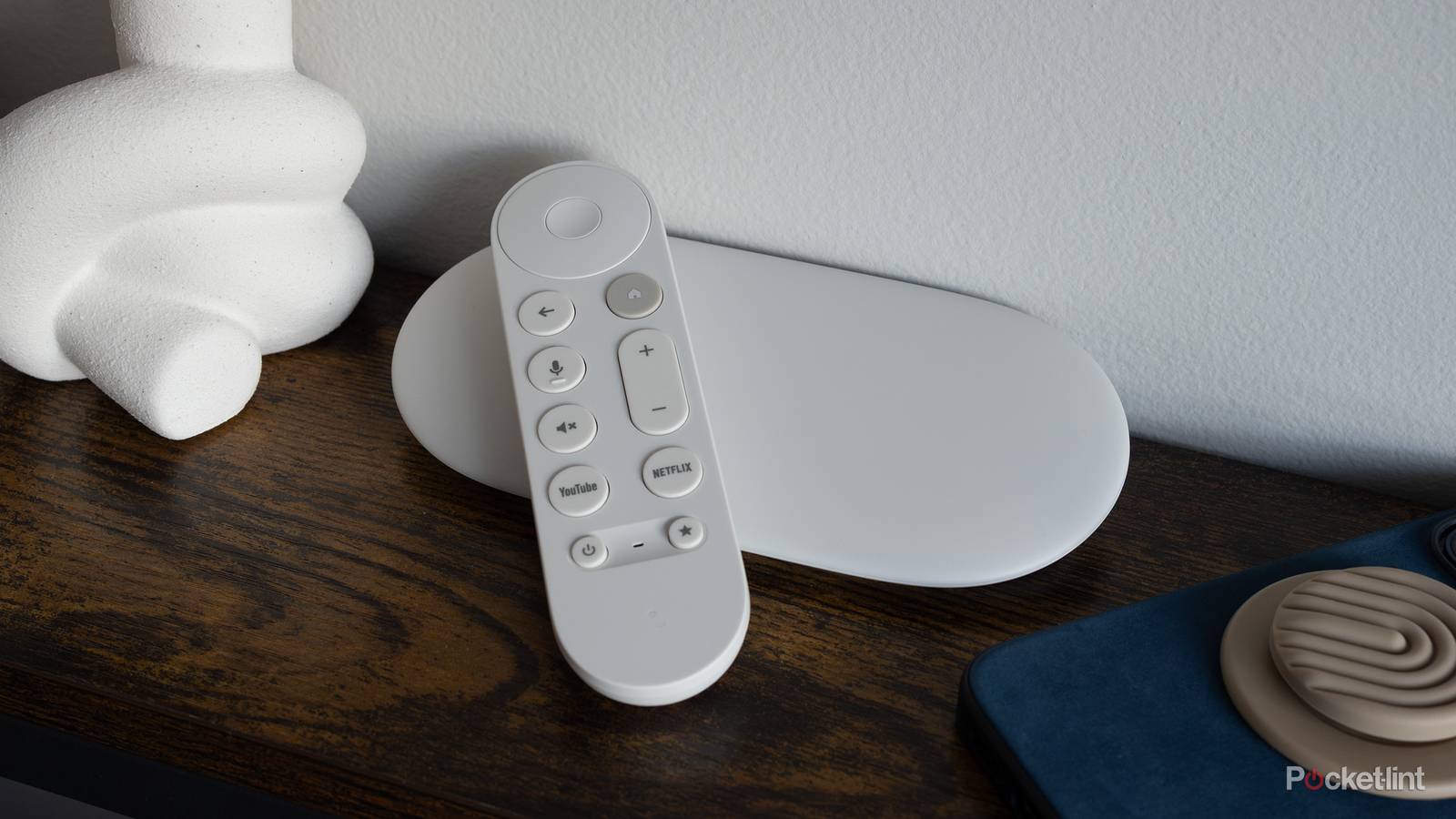
If your Google TV Streamer has started taking longer to load apps, jittering during playback, or generally feeling slower than usual, there’s a good chance a build-up of cached data is part of the problem.
Like most Android-based devices, the Google TV Streamer stores temporary files from the apps you use every day. Services like YouTube, Netflix, Disney+, Prime Video, and Spotify all save bits of data locally so they can load content faster the next time you open them. Most of the time, that’s a good thing, but occasionally those temporary files can pile up and take up valuable storage space.
When that happens, you might notice apps crashing unexpectedly, buffering issues appearing out of nowhere, or even the entire interface feeling less responsive than it used to.
Before you try more drastic measures to correct this, like resetting the device, one of the easiest fixes is clearing the cache. The process only takes a minute or two, and it won’t delete your apps, accounts, or watch history.
You don’t need a new Fire TV Stick – you need to clear the cache
Clearing the cache is one of the easiest ways to speed up your Fire TV Stick.
How to clear cache on a Google TV Streamer
Clear cached files and get your streamer running smoothly

Google makes it fairly easy to clear cached data on any Google TV OS device, including the Google TV Streamer. You can either clear the cache for all apps at once or target a specific app that’s giving you trouble. To clear the cache for all apps on your Google TV Streamer:
- From the Google TV home screen, select Settings (gear icon) from the top right.
- Open All Settings.
-
Select System and choose Storage.
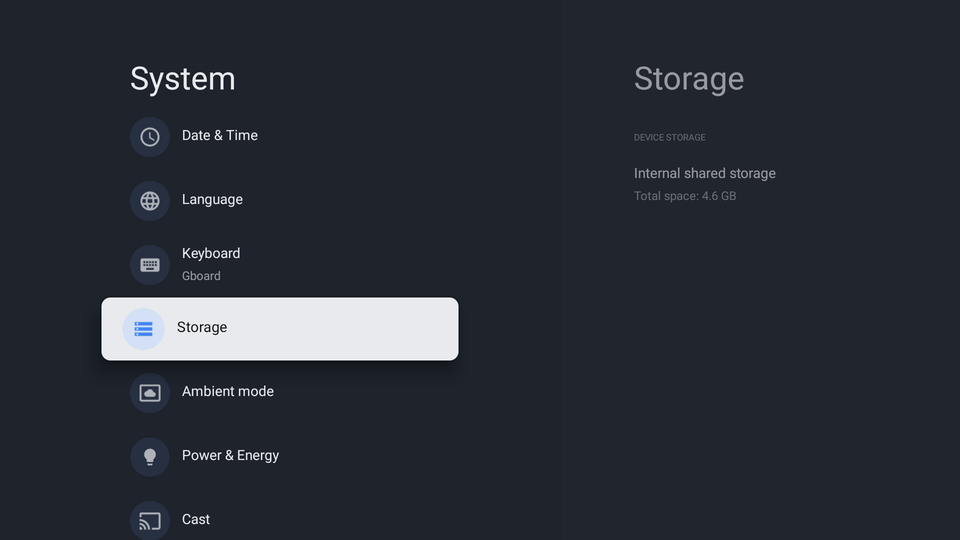
- Select Internal shared storage.
- Scroll down and choose Cached data.
-
Select OK when prompted.
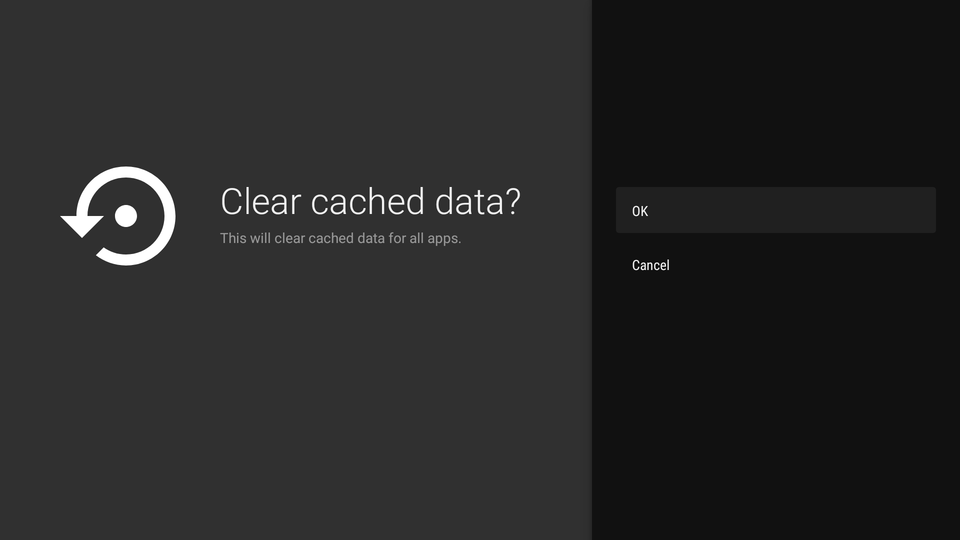


That’s it. The Google TV Streamer will remove cached files from installed apps while keeping your accounts and settings intact. If you’re only having problems with one specific app, clearing that app’s cache can sometimes be the better option. To clear cache for an individual app:
- Open Settings.
- Select Apps and then select See all apps.
- Select the app that’s causing problems.
- Open Storage & cache.
- Select Clear cache.
After doing this, launch the app again and give it a few seconds to rebuild the temporary files it needs. You might notice that the first launch takes slightly longer than usual, but subsequent launches should return to normal.
It’s also worth mentioning what clearing the cache doesn’t do. It won’t uninstall the app, remove your login credentials or delete downloads. Instead, it only removes some temporary files that can be generated again by the app as you use it.
If you’re dealing with a more serious issue, like the app force-closing as soon as you open it or streaming issues, you may need to use the separate “Clear data” option, though I’d generally only recommend it as a last resort.
What cache actually does (and when you should clear it)
Fix slow apps and free up storage in minutes

Now that you’ve deleted the cache files from your Google TV streamer, you may be wondering what those cache files actually are. Cache files are temporary files that apps store on your device. These files are designed to help apps load faster by keeping frequently used information readily available instead of downloading it again every time.
For example, a streaming app may cache things like menu assets, thumbnails, profile information, and other content that doesn’t change frequently. Rather than fetching all of that information from the internet each time you open the app, the device can simply load it from local storage.
In theory, this improves performance and reduces loading times.
The downside is that cache isn’t perfect. Over weeks and months of use, those temporary files can accumulate and consume a surprising amount of storage space. In some cases, cached files can also become outdated or corrupted, which may lead to strange behavior inside apps.
Clearing cache is one of the quickest fixes to try when your Google TV Streamer starts acting up.
That’s why clearing the cache is one of the most common troubleshooting steps for Android phones, tablets, and even streaming devices. It essentially gives apps a clean slate without affecting your personal data.
The good news is that clearing cache is completely safe. The worst thing that usually happens is that an app takes a few extra seconds to load the first time you open it, afterward, so you may feel like it may not have fixed much, but that isn’t usually the case.
It’s worth noting that you don’t need to clear cache regularly, and it won’t magically speed up your Google TV Streamer. But when apps start acting up or performance feels sluggish, it’s one of the quickest fixes to try. Lastly, make sure your Google TV Streamer is running the latest software version. Updates often include performance improvements and bug fixes that help keep everything running smoothly.

- Dimensions
-
6.4 x 3 x 1-inch
- Connective Technology
-
Wi-Fi, Bluetooth
- Brand
-
Google
- What’s Included
-
Remote