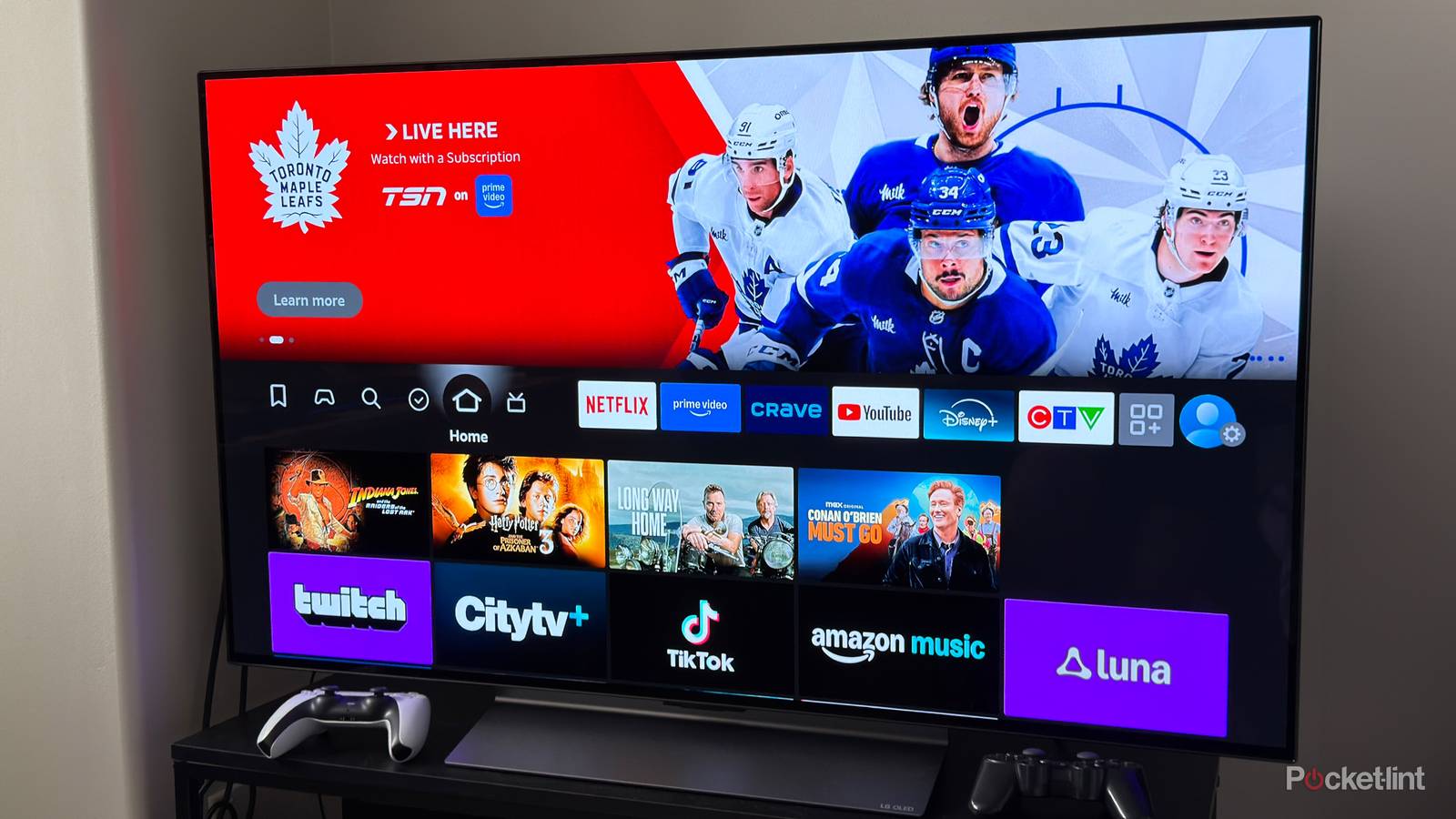
At this point, there’s almost no dodging integrated ads on a smart TV or add-on media streamer without some sort of outside help. Companies like Amazon, Roku, and Google are bent on monetizing their interfaces, above what you’ve already paid for the hardware. And even with Apple’s relatively benign tvOS, found on the Apple TV 4K, you may encounter the occasional banner for Apple products, and you’ll still get ads inside the apps you’re using. Far too many TV sets ship with something called ACR active — this collects anonymized data not just on native app usage, but everything that appears onscreen, even if it comes from something like your Blu-ray player.
If you’re sick of all this, and just want to cut through to the content you’ve paid for, there are three different ways of combatting unwanted ads. Or levels, I should say. The more thoroughly you want to block things, the more effort you have to put in. In some cases you may get ads anyway, or risk breaking some apps or functions. It may just be easier to tune the ads out, as you’ll see.
Level 1: Changing your device’s built-in settings
The least impact, but not zero

If you do nothing else in this guide, you should turn off ACR, which stands for Automatic Content Recognition. As I hinted a moment ago, this takes occasional snapshots of whatever you’re doing on your TV, regardless of the source. At best this is used to direct more targeted ads at you. At worst, this data may be sold to third parties for their own marketing purposes, and you won’t have much say on things from there. You should be fine, practically speaking, but it’s right to be upset about being fingerprinted.
The exact method for disabling ACR is going to depend not just on your TV’s operating system, but sometimes the specific brand. As if that weren’t bad enough, the “feature” is often disguised under a benign-sounding name, as you can see in the photo above. To get started, check out our guide, or do a quick web search for disabling ACR on a specific TV brand or platform (Roku OS, Fire TV, etc.).
Beyond this, there isn’t much you can do with built-in settings, but it’s worth exploring them to see if you can disable personalized ads, personalized recommendations, or anything else that sounds similar. On the surface, having movies and TV shows recommended on your homescreen may sound appealing, yet that still involves collecting data about your habits, and I’ve rarely clicked on something on my homescreen that I wasn’t already familiar with. You’re better off reading/listening to reviews and building your own watchlist. If you’re lucky, your device will let you disable recommendations entirely.
Once you’ve accomplished all of the above, you’ll want to reset/delete your advertising ID, which is used to associate tracking info with you. You should also be able to disable auto-play for video-based ads and previews. Honestly, that alone can result in a much nicer TV experience, making it simple to ignore ads while simultaneously speeding up browsing. I’ve never heard of anyone who actually wanted their TV to start blaring because they left their cursor on a particular title.
Level 2: Switching to an alternate DNS
A stronger solution, with risks

When you enter a URL into a web browser, you’re not going directly to the address you type in. Instead, that’s matched against a DNS server, that acronym being short for Domain Name System. Think of this as the internet equivalent of a phonebook — for those of you old enough to remember using one. The URL you enter is matched with an IP address, saving you the trouble of memorizing some very complex digits.
There’s more going on. Naturally, a DNS server can be used to filter requests from software, and that’s where it comes into play on your TV. If you can change the server you’re using to one that blocks known ad- and tracking-related IPs, that content just won’t show. Let me warn you upfront, however — there’s a risk that if the wrong content is blocked, it will temporarily break an interface until the server is switched back. Also, services like Netflix deliberately embed their ads into the same streams your movies and shows come from, preventing you from blocking their ads without sabotaging the entire experience. If any of this sounds intimidating, you’re better off sticking to my Level 1 tips.
By default, both your TV and Wi-Fi router usually turn to a DNS server assigned by your ISP (internet service provider). If you know an alternate server that promises to block ads and trackers, however, you can manually point your router or TV to it. One example is AdGuard DNS. Note, however, that the free version of AdGuard is limited to five devices and 300,000 requests per month. That might sound like a lot until you consider how many ads you run into on all your devices on a daily basis. You might blow past the 300,000 mark well before the end of the month.
Needless to say, you shouldn’t switch to a server you don’t have full confidence in. That could hypothetically wreak havoc on your entire internet experience, even intentionally exposing you to spyware and other malware.
Level 3: Setting up a Pi-hole
For advanced users, or people willing to learn

If you’re not familiar, the Raspberry Pi is a dirt-cheap mini PC. While you can technically turn one into a conventional desktop, the real value is in enabling all sorts of hobby projects, like setting up a smart home hub or emulating retro game consoles. One of the most popular uses is setting up a Pi-hole.
What’s a Pi-hole? This is used to block ads and trackers via DNS, but takes a different approach from what you saw in the last section. Essentially, a Pi-hole acts as a middleman DNS server situated on your local network. It’s still fetching data from an external server, but enacts a custom blocklist each time a request is made. This gives you full control over what’s blocked, instead of having to depend (solely) on what an outside party deems acceptable.
If you know what you’re doing, this is extremely powerful, allowing you to catch things that even the likes of AdGuard might miss, all without paying a monthly or annual fee. You will have to buy a Raspberry Pi kit, however, then learn how to configure it as your router’s new DNS server, or point your TV towards it if that’s an option. There are automated installation methods — but even these involve tools and concepts you might not be familiar with. On top of that, you’ll need to decide on one of several auto-updating blocklists, since trying to keep up with ad domains on your own would be a Sisyphean struggle.
You still won’t be able to block ads when they’re served from the same domain as content, and there’s a chance that some apps and OS features will break if they can’t reach all the servers they’re expecting. Moreover, some devices may use hardcoded DNS servers or hide DNS requests in HTTP traffic, preventing the Pi-hole from doing its job at all.


4.5/5
- Brand
-
Raspberry Pi
- Storage
-
Flash storage or PCIe with adapter
- CPU
-
Broadcom BCM2712, quad-core (4x Arm Cortex-A76), 2.4GHz
- Memory
-
4GB or 8GB