In today’s day and age, there’s an abundance of free ad-supported streaming television (FAST) service providers available to choose from across app stores, operating systems, and the internet at large.
I’ve previously chronicled some of the FAST services I leverage on Google/Android TV, Roku OS, Amazon Fire OS/Vega OS, LG WebOS, Samsung Tizen, and more, each of which brings its own unique flavor of streaming into the fold.
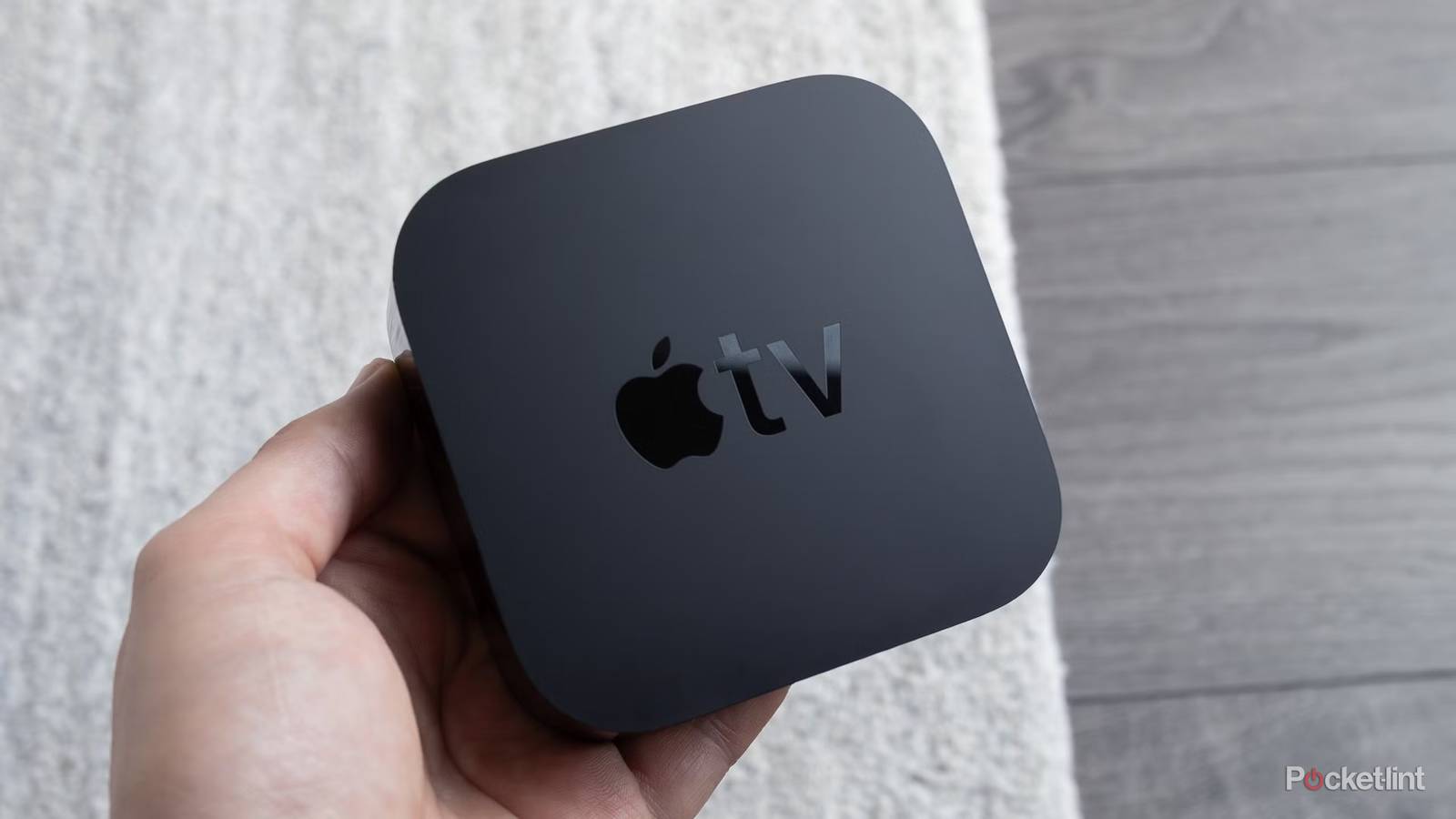
Apple is yet another big player in the streaming hardware and software space, what with its Apple TV set-top box, and with its paid, cross-platform Apple TV streaming service. For better or worse, Apple TV doesn’t offer a free ad-supported tier, which means that third-party services are the way to go if you own Apple TV hardware and want to access subscription-free content.
Personally, there’s one FAST service available on the Apple TV that stands above the rest in my eyes, and it’s none other than the Fox Corporation’s Tubi. Tubi offers access to a vast library of free content, ranging from on-demand movies and shows, to live broadcasts, and everything in between.

- number of users
-
80 million
- notable shows
-
Hemlock Grove, Babylon 5, Spartacus, Gotham, Columbo
- notable movies
-
Don’t Tell Mom the Babysitter’s Dead, Child’s Play, White House Down, Knives Out, It
- Premium Subscription
-
No
- Originals
-
Yes
- Live TV
-
200+ channels
Tubi is a free streaming platform that offers a vast collection of TV shows, movies, and even access to live TV channels. Tubi is available across all major platforms via a dedicated application or via the web.
How to get free live TV on your Apple TV set-top box
Tubi is my go-to application for free content streaming

I love Tubi, not only because of it’s FAST-based lack of subscriptions and recurring payments, but also because its catalog is dynamic and diverse, and because its interface is slick and intuitive. While Tubi is available on just about every platform out there, it really shines on the Apple TV, with its well-optimized app interface and its Siri Remote navigation support.
To get started with Tubi on an Apple TV, follow these steps:
- Launch the App Store application from your home screen.
- Navigate to the Search tab and then type Tubi into the search field.
- Locate Tubi’s official App Store listing, and then hit the Get button.
Once the Tubi app is finished downloading, you’ll find its icon right on your Apple TV home screen alongside all your other apps, games, and services. From here, simply select Tubi, and you’ll then be transported into a world of free ad-supported content.
At the time of writing, Tubi is available in the United States, Canada, Mexico, Costa Rica, parts of Latin America, the United Kingdom, Australia, and New Zealand. Exact content found on the service varies based on your area of residence, owing to various per-nation licensing agreements.
Luckily, an account with Tubi isn’t required to get started with streaming, meaning you can hop right into on-demand and live channels without missing a beat. As with many other FAST services, the only thing you truly need to get started is a stable internet connection via Wi-Fi or wired Ethernet.
On Tubi, you’ll find all sorts of shows and movies spanning just about every genre under the sun. Available content can be sorted through either directly from within the Tubi app, or by visiting the company’s official website portal. A separate ‘Coming Soon!’ section is also available, which showcases new and upcoming arrivals to the platform.