


It feels like smart displays had their moment and then quietly faded into the background. And the same thing happened with my Google Nest Hub. It mostly just sits on a bedside table showing the weather, controlling a few smart home devices, maybe playing some music, and that’s about it.
Over the past few months, it has slowly turned into exactly that kind of gadget for me. Useful, sure, but not exactly essential anymore. That said, the Nest Hub still had one trick left up its sleeve, and everything changed when I came across an app that let me turn it into a secondary display for my PC.
Honestly, I didn’t expect much from the setup. The Nest Hub’s tiny screen and basic hardware don’t exactly scream “desktop companion.” But after using it next to my monitor setup for a few days, I realized this weird little hack is way more practical than it sounds.
USB-C doesn’t matter on PCs, and I’m tired of pretending it does
USB-C has been slow to roll out on desktop PCs.
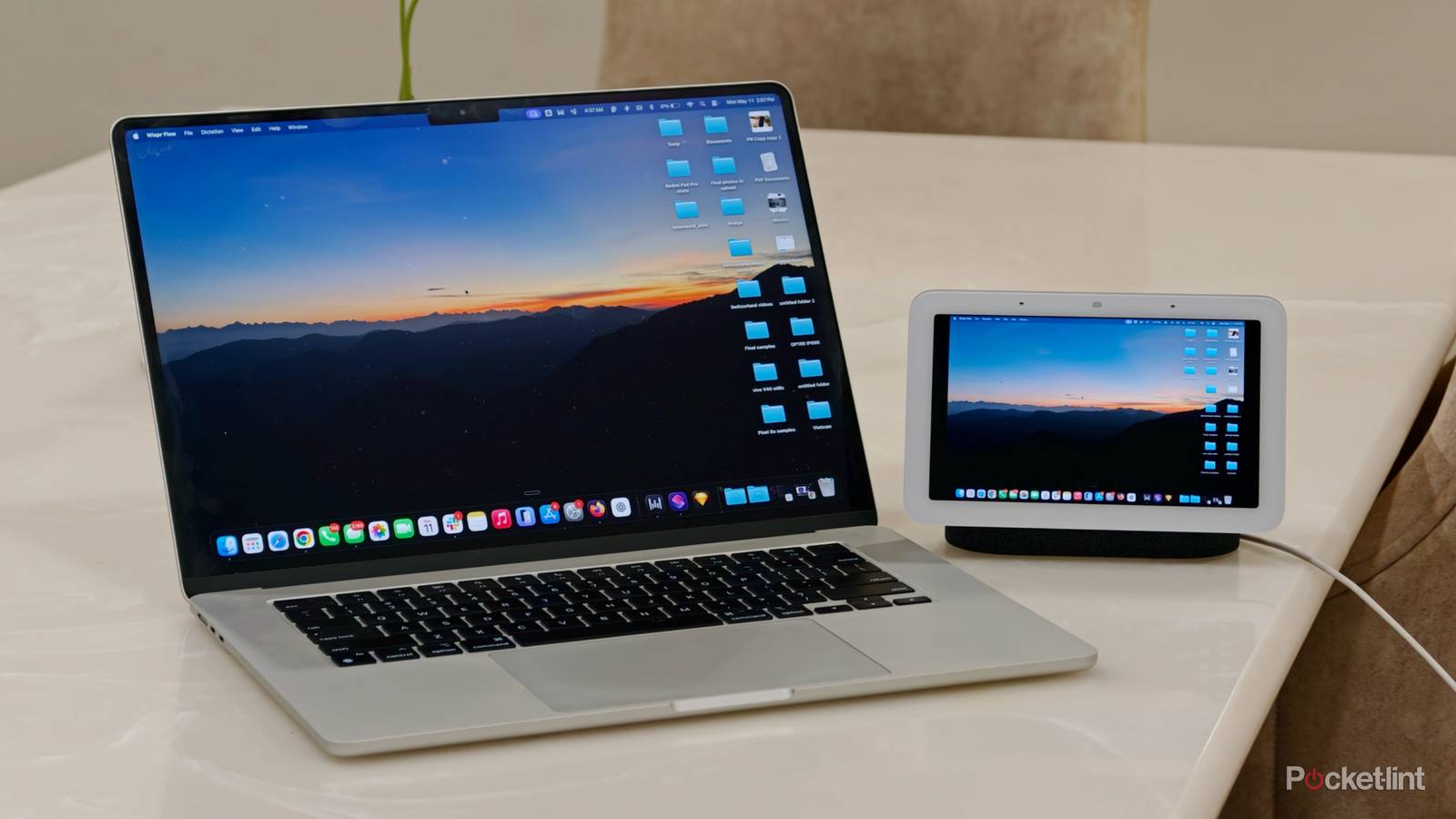
How I turned my Nest Hub into an external display for my MacBook
It’s as simple as casting a video from Google Chrome on my laptop

It’s been a while since Google introduced them, but Google still continues to offer two smart displays under the Nest Hub lineup: the standard Google Nest Hub and the larger Nest Hub Max. While neither device has been designed to function as a proper external monitor, both surprisingly work quite well for casual secondary display usage thanks to built-in Google Cast support.
The standard Nest Hub features a 7-inch display with a 1024×600 resolution, while the Nest Hub Max steps things up with a larger 10-inch panel at 1280×800. Both devices also pack decent speakers, support Wi-Fi 5, and continue receiving updates from Google.
In fact, Google has recently been pushing Gemini-powered experiences to Google Home and Nest devices, making these smart displays feel more useful than they did a year or two ago. They can now handle more natural conversations, answer more contextual questions, and generally feel smarter than the Google Assistant-powered versions that came before them.
Thankfully, despite all these updates, Google still supports Google Cast functionality on both Nest Hub devices. And thanks to this, you can essentially use it as a wireless display for supported apps on your laptop or desktop. Apps like Google Chrome and Microsoft Edge can cast content directly to the Nest Hub, whether it’s a single tab or your entire screen.
To cast using Google Chrome from your PC or laptop:
- Open Google Chrome or the Microsoft Edge app on your MacBook or PC.
- Click the three-dot menu in the top-right corner.
- Select Cast, save, and share.
- Tap Cast…
- Your Nest Hub should automatically appear under available devices.
- You’ll also be able to choose whether you want to cast a single tab, a specific window, or your entire screen by selecting the Sources button.
It is worth noting, however, that both your laptop and Nest Hub need to be connected to the same Wi-Fi network for casting to work properly. A stable connection also makes a massive difference here, especially if you’re casting your full screen instead of a static browser tab.
The Nest Hub’s small display is both the best and worst thing about it
It works great for music controls, chats, and quick references

Depending on which Google Nest Hub you own, whether the standard model or the larger Nest Hub Max, you’ll quickly realize these displays aren’t exactly ideal as proper external monitors.
The lower resolution and average brightness become noticeable pretty fast, especially when compared to even a cheap portable monitor. You’re not going to play games on this thing, and you definitely won’t want to use it for video editing or any sort of detailed work either.
However, it works surprisingly well as a secondary static window if that’s all you need. Personally, I mostly used it to cast a single window from my Mac that showed Activity Monitor, since I like keeping a close eye on CPU and memory usage while working. It also turned out to be really handy as a background YouTube player whenever I cast videos directly from Chrome on my laptop.
Even keeping an AI chatbot open on the side proved surprisingly convenient, so overall, I found the setup best suited for passive tasks rather than anything productivity-heavy.
I still wouldn’t replace a real monitor — but that’s not the point
My Nest Hub suddenly feels useful again

That said, given these limitations, I wouldn’t really give up my external monitor for this setup anytime soon. However, as a passive secondary information screen, I found the setup surprisingly useful.
And since the Nest Hub still has Google Home built in, I can continue controlling my smart home devices right from my desk without having to move, which makes it even more practical.
Of course, if productivity is your main goal, a proper portable monitor or even a cheap Android tablet will give you a much better overall experience. But if you’ve already got a Nest Hub sitting around collecting dust, this setup might genuinely surprise you. It definitely surprised me.