


A recurring complaint you’ll hear is that it’s hard to find a dumb TV. They’re actually not as hard to find as you might think — but you do have to hunt for them specifically, and they’re not really marketed towards the average consumer anymore. They’re aimed at businesses, like that patio bar that wants outdoor viewing, or a weightlifting gym that needs digital signage. And if you do buy one, don’t expect to get the best possible specs.
So what if you want the performance of a smart TV, but the simplicity of TVs gone by? One answer may be a set with Google TV, which has a little-known feature called Basic mode. There are some significant drawbacks to this mode, which I’ll cover as it makes sense. For a start, I’ll just say that there may be simpler solutions if, say, you’re worried about privacy, or jumping straight to a particular device.
How to switch a Google TV into Basic mode
Be sure before you pull the trigger

Hopefully you’re reading this if you’ve just bought a new TV. Why? Basic mode is easiest to set up on a virgin device. In fact if you’ve already completed the standard “smart” setup process, you’ll have to perform a factory reset to complete the rest of this tutorial. You should be able to do that by going to Settings -> System -> About -> Factory reset — I say “should” because menu labels can vary from brand to brand.
Be warned that a factory reset will erase all the apps and settings you’ve configured, so if you switch back to the standard mode, you’ll not only have to redownload any apps that aren’t pre-installed, but sign back into all your accounts, and go through Settings to restore your sound and picture preferences. Unless you’re committed to having a dumb TV, you may be better off with those simpler alternatives I mentioned, which I explain in a later section.
Once you’re at the welcome screen in the initial setup process, follow these steps:
- Select your preferred language, then the region you’re in. You’ll need this for the rest of the setup process and core functionality.
- When prompted, choose Set up basic TV instead of Google TV.
- You may be asked to set up Wi-Fi. This won’t take you out of Basic mode, but it’s probably wise to click Skip Wi-fi setup.
- Finish setting up your remote control and changing any audio and video options.
That’s it — you’re good to go. Now, though, it’s important to be aware of what you can do in Basic mode, as well as what’s off-limits.
What can you do in Basic mode?
More than you might think

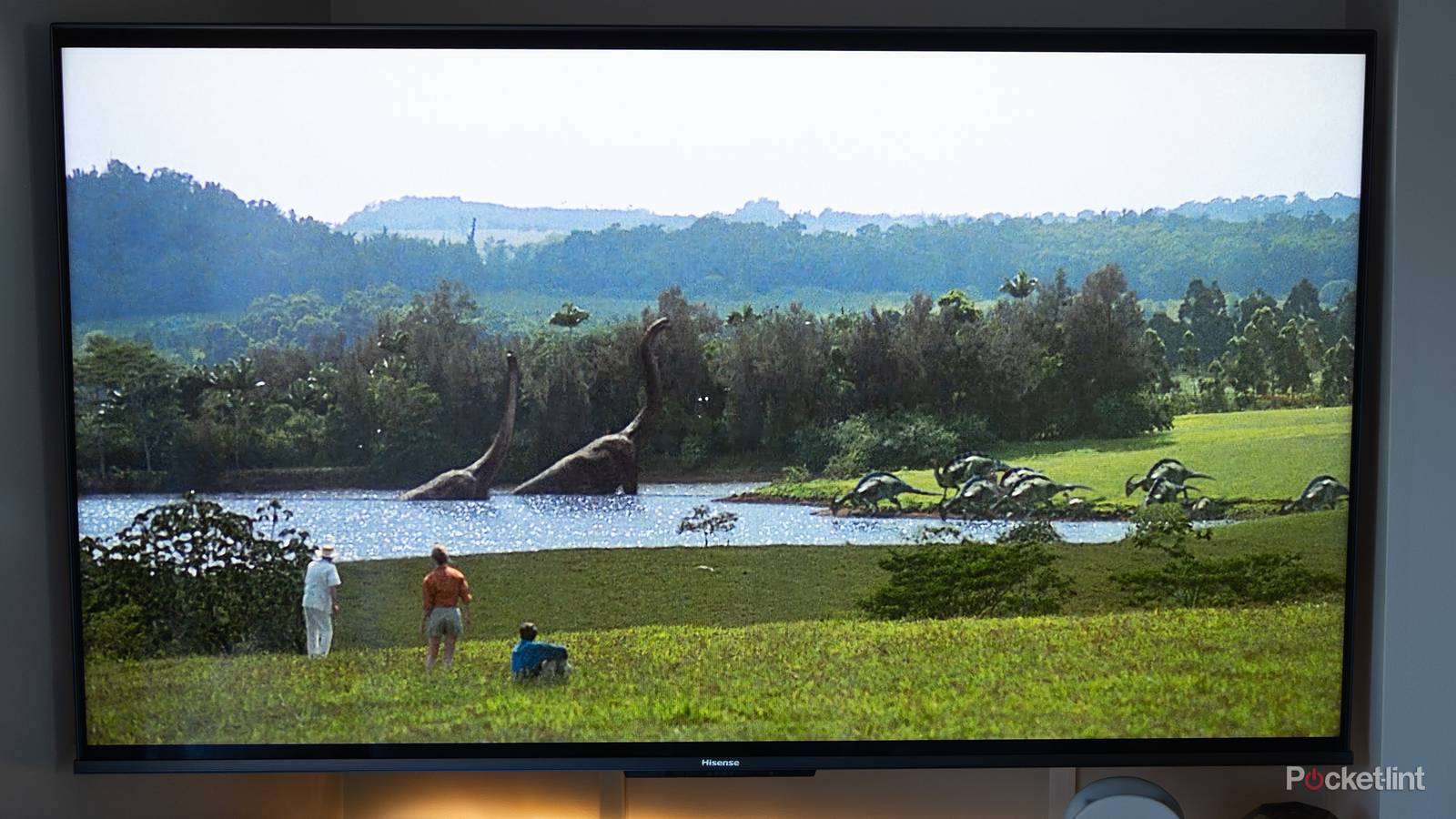
As you’d expect, one thing you can do is watch live TV. This is handled through the appropriately-named TV app. You will, however, need an external wired source, whether that’s a cable or satellite box, or some form of digital antenna. You can’t tune into an internet-based service like Sling or YouTube TV this way.
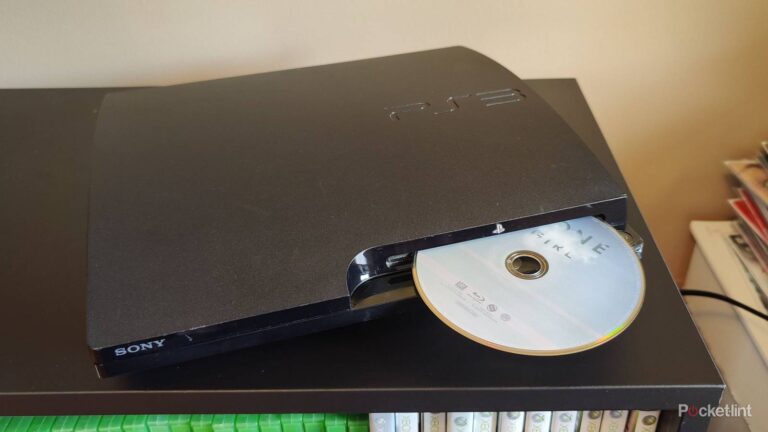
If you’ve got a device like a media streamer, Blu-ray player, or game console connected via HDMI, you can switch inputs. You may not need to do this manually. If HDMI CEC is enabled, simply turning on a peripheral should flip your TV on and select the right source. It is, however, a good idea to go to Settings -> System -> Power & Energy -> Power-on behavior and choose Last used input if you only ever use your TV for the same hardware.
You can also access some other pre-installed apps, but don’t expect much. You might be able to play movies from a USB drive, but that’s going to take a lot of preparation. You not only need to amass a collection of movies (or TV shows) on your computer, but make sure they’re converted into the right file formats, and sorted into well-named folders. If you’re not thorough, it’s going to be hard to find the movie or episode you’re trying to play, and subtitle files may not work. The USB media apps on TVs can’t automatically tag and sort content for you other than arranging things alphabetically, and perhaps displaying thumbnail images.
What can’t you do in Basic mode?
A very long list

Leading the list here is anything that requires signing in to your Google account. That means you can’t access your watchlist, or any movies or shows you may have purchased from Google Play. You also can’t download any new apps, and if any pre-installed apps are from Google, you’ll be limited to their signed-out versions at best, assuming you chose to connect Wi-Fi or Ethernet during setup. If YouTube is available, you’ll be stuck with generic recommendations and searches rather than your subscriptions and playlists.
Gemini or Assistant voice commands may be unavailable. Google isn’t clear on whether some basic functions will work offline, like turning a TV on and off. But most voice commands require interpretation by remote servers anyway, regardless of whether you’re searching for online content. Assume you’re going to have to use your remote most of the time.
By extension of some of the things above, don’t expect to control smart home accessories, or integrate your TV into automations. Those require access to Google Home, which in turn demands a Google account.
One limitation that might surprise you is Google Cast. You’d think this would be available with Wi-Fi enabled, but Google says that it simply won’t work in Basic mode. Often, casting only tells apps to fetch content, so there may not be much lost. If you’re using a console or add-on media streamer, try casting to that instead.
The alternatives to Basic viewing
Try these first

If your major concern is privacy, it’s possible to disable features that collect data. The main thing to turn off is Automatic Content Recognition (ACR), which may be recording anonymized data for marketing purposes even when you’re using an HDMI device. The exact method for killing it varies from brand to brand, but on Google TVs, you can typically find the option under Privacy or About menus in Settings. On Sony sets, you’re looking to disable something called Samba Interactive TV.
Really, you’ll be fine if you turn off as many tracking-related options as possible and reset your advertising ID. It’s true that you’ll still get generic ads, and may not get the best content recommendations, but I’ve never really found that this matters. I never buy anything based purely on what I see on TV, and most of the “targeted” ads I do get are hilariously off-base — I’m not running a datacenter, shopping for farm equipment, or in any way interested in enterprise software.
Whether or not you’ve disabled ACR and other tracking technologies, you can have Google TV switch to connected devices automatically, as I explained earlier. This will make your TV feel “dumb,” simply because you’ll rarely if ever see the homescreen. And by avoiding Basic mode, you have a fallback if your add-on devices ever disappoint you.