


Every time I reinstall Windows 11 or set up a new PC, the first thing I do is open Edge, install Google Chrome, and download a handful of essential apps I can’t live without. That includes apps like Steam, Spotify, Discord, Photoshop, and Slack. But one app I never forget is VLC media player.
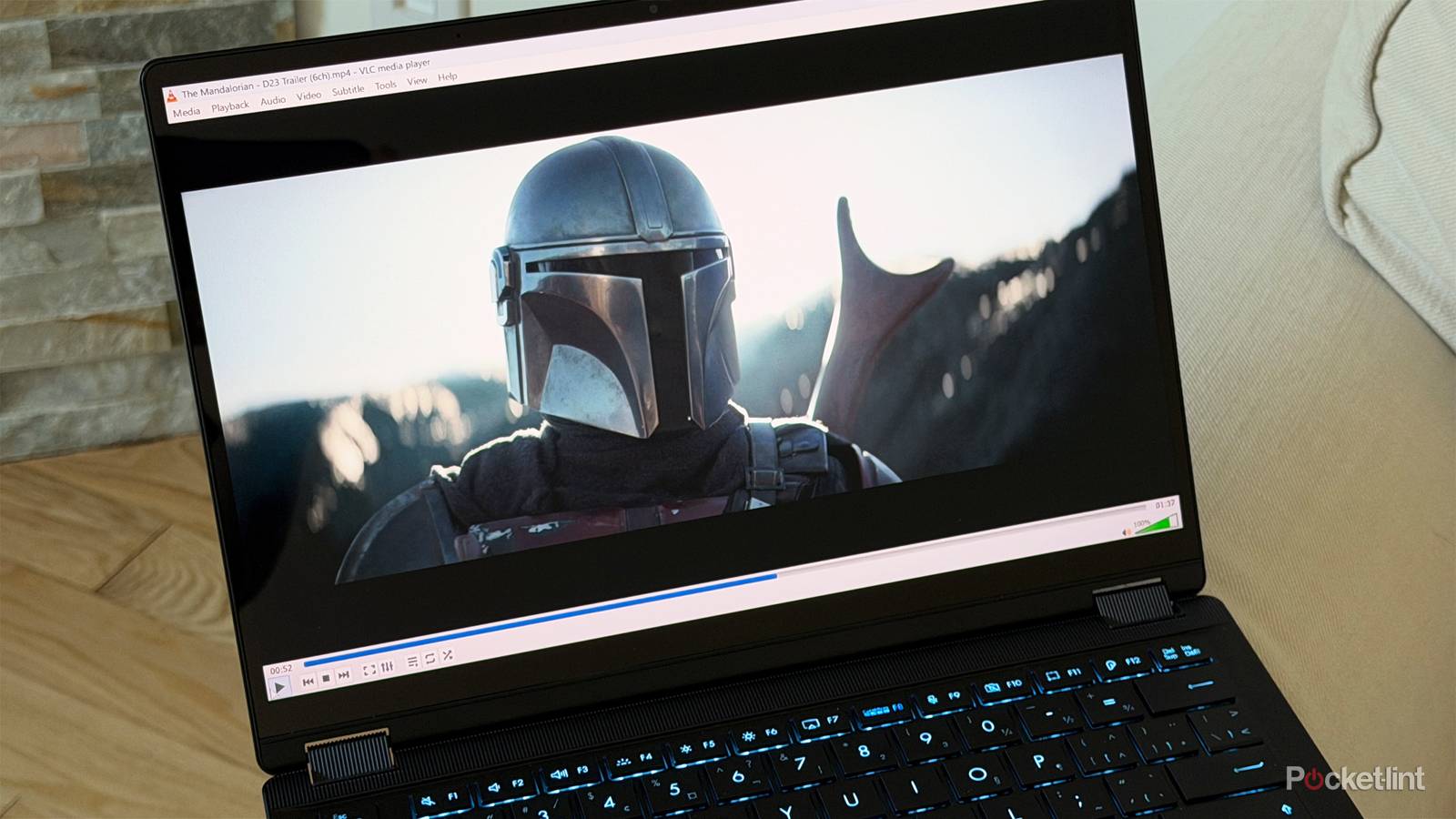
While Windows has its own built-in media player, it comes nowhere close to matching the capabilities of VLC, a popular free, open-source alternative that is truly in a league of its own. It supports far more video and audio codecs than Windows Media Player could ever dream of, and it has a simple, straightforward user interface that has remained largely unchanged since I first installed VLC over 16 years ago.
Simply put, if you want to watch video files on your PC or listen to audio files, VLC is hands down the best option. However, its capabilities go far beyond what meets the eye. With these lesser-known tricks, you can do a lot more with VLC and make an app that’s already extremely useful even more powerful.

- Developer
-
VideoLAN Project
- Subscription cost
-
Free
- Ads
-
No
VLC is a free, open-source media player.
Record your desktop screen
You don’t need a third-party app to record your desktop

One of the first hidden features I discovered in VLC that’s proven to be very handy is the ability to record your desktop. I remember using apps like Fraps, Bandicam, and even Nvidia Shadowplay back in the day to record my desktop whenever I was creating a tutorial or getting help troubleshooting an issue. But it turns out VLC has a feature that lets you do this easily without downloading any other apps on your PC.
To record your desktop with VLC, click Media in the top menu, then choose Open Capture Device. In the dialog box that appears, set Capture Mode to Desktop. From there, pick your preferred frame rate (I recommend 30 or 60 FPS), then hit Play — you’ll then see your desktop mirrored in VLC.
To start recording, go to Playback > Record in the top menu. When you’re finished, select Playback > Stop. By default, VLC will save the desktop capture to your Videos folder as an MP4 file.
Convert files
You can use VLC to convert MP4s to MP3s

Occasionally, I find myself needing to convert a file for a project I’m working on, typically from MP4 to MP3. I used to use editing software like Premiere Pro for this, but then I found out that VLC has a built-in tool to convert files quickly.
To do this yourself, click Media in VLC’s top menu, then select Convert/Save. In the Open Media dialog that appears, click Add to choose the file you want to convert. Once it’s added, hit Convert/Save at the bottom.
A new Convert window will pop up, where you can choose the output format using the Profile dropdown. Most of the time, I’m converting MP4s to MP3s, so I go with Audio – MP3. After that, choose where you want to save the file by selecting Browse. From there, click Start, and VLC will handle the rest. Depending on the file size, it might take a bit, but for the short MP4 clips I usually convert, it takes seconds.
Capture screenshots
Snap the perfect frame grab of a movie

I use VLC a lot to watch old movies and gameplay footage I’ve recorded, and one feature I’ve come to rely on is its built-in screenshot tool. Sure, you could use something like Snipping Tool to grab a screenshot, but VLC can easily capture a perfect frame of whatever you’re watching. So if you see a cool shot in a movie and want to save it as a desktop wallpaper or send it to your phone, VLC makes it easy to grab a screenshot.
To take a screenshot in VLC, click Video in the top menu, then select Take Snapshot. VLC will instantly capture the frame at full resolution and, by default, save it to your PC’s Photos folder. You can do this while a video is playing, but for the best results, I recommend pausing first.
Turn any frame into a puzzle
VLC is not only great for videos but also for creating puzzles

If you’re looking to take a break from the games in your Steam library or give your brain a bit of a reset after a long day, this next VLC trick might surprise you. Not only does it turn VLC into a game, but it’s also genuinely fun and a little tricky. It lets you turn a frame of whatever you’re watching into a jigsaw puzzle.
I’ve found this especially fun with movie trailers, and VLC even lets you choose how many rows and columns the puzzle has — so you can make it as easy or as frustrating as you like.
To turn a video frame into a puzzle, pause at the moment you want, then press Ctrl+E to open the Adjustments and Effects menu. From there, go to Video Effects and open the Geometry tab. You’ll see an option for Puzzle Game. Just toggle it on, pick your rows and columns, click Save, and you’re ready to start solving. Who would’ve thought that not only is VLC the best media player, but it’s also a great free puzzle creator?
Enable dark mode
Save your eyes

Lastly, one of the more recent additions to VLC this year is built-in dark mode support. So if you already use dark mode on your PC, you can now bring the same look to VLC’s menus and spare your eyes from being flash-banged by a bright white interface, especially at night.
To enable it, first make sure VLC is up-to-date. Go to Help in the top menu and select Check for Updates. If an update is available, VLC will download and install it.
Once that’s done, head to Tools > Preferences. Under Look and Feel, simply toggle on Use a dark palette. Dark mode will then be enabled, though you may need to close and reopen VLC for it to fully take effect.