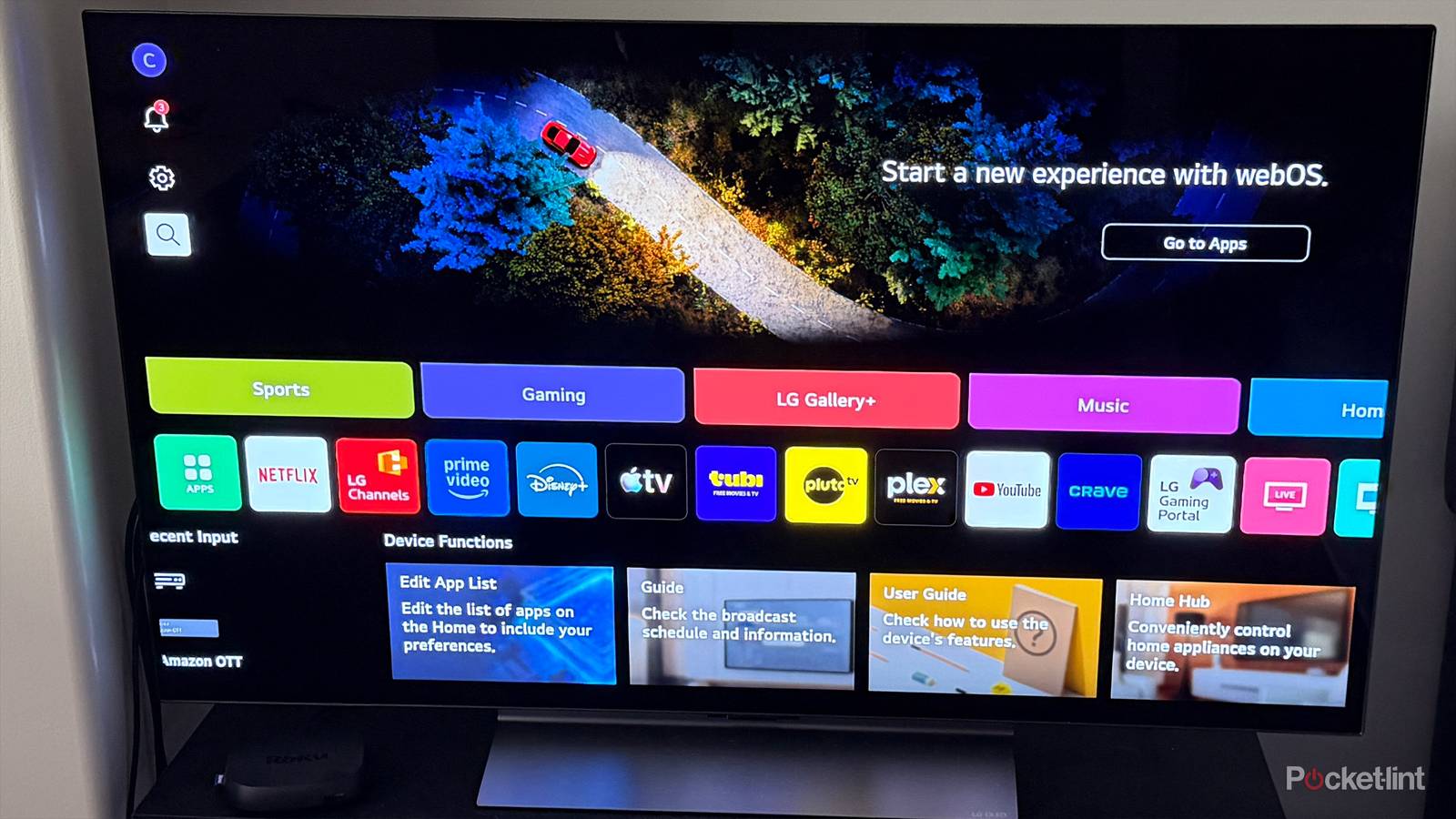
When I first set up my LG C5 TV and started watching shows and movies, playing games, and exploring its features, I was stunned. Coming from an older Samsung LCD TV, I found it to be a pretty huge upgrade. It’s the first OLED TV I’ve ever owned, and the first time I’ve used a TV with a 120Hz refresh rate. Needless to say, I have zero regrets about my purchase after experiencing how awesome it is.
However, while the picture quality is fantastic (especially after tweaking a few key settings), one thing that really bothered me was the home screen. All LG TVs run webOS, the company’s built-in smart TV platform that lets you download apps and browse free channels — but LG absolutely floods the interface with ads for shows, movies, and apps. It completely ruins the look and makes your TV feel more like a billboard than a premium display.
What’s worse, even leaving the TV idle on the home screen isn’t safe — it starts playing ads on its own when it enters standby mode and displays the screen saver. I’ll never forget walking back into my room after a few minutes away to find a toothpaste ad blasting from my TV unexpectedly.
After spending $1,000 on a TV, the last thing I wanted to see was ads plastered all over it, so I began a quest to remove them and get a clean, ad-free home screen and screen saver that my LG TV should have had right out of the box. Luckily, it’s extremely easy to do this, as LG lets you disable all the ads in the settings menu. If you know where to look, that is.
How to eliminate ads from your LG TV’s home screen
You just need to turn off two settings

To get rid of ads on your LG TV’s home screen, you need to disable two settings enabled by default: Home Promotion and Content Recommendations.
LG states that Home Promotion is a setting that lets you “show or hide Sponsored Advertisements,” while Content Recommendations lets LG “display content recommendation categories in the Home menu,” which, in other words, means ads for shows and movies to watch.
Here’s how to turn off both of these settings on your LG TV step-by-step:
1. Open the Settings menu on your LG TV by pressing the gear icon on your remote.
2. Go to General > System > Additional Settings > Home Settings.
3. Turn off Home Promotion.
4. Turn off Content Recommendations.
Once both are toggled off, you’ll immediately see your LG TV’s home screen go from ad-covered to completely ad-free. I think it makes the user interface look much cleaner and, in my experience, has made my TV much faster, since it’s not constantly trying to load ads to play.
But even with the ads gone from your home screen, the job isn’t done yet. There is one more setting you have to turn off to disable screen saver ads.
How to get rid of screen saver ads on your LG TV
Say goodbye to random ads on your TV

Similar to disabling home screen ads on your LG TV, you’ll need to dive into the settings menu once more to disable ads from playing on the screen saver when your TV goes into standby mode. This time, the setting is called: Screen Saver Promotion, and it’s conveniently right next to Home Settings, which you’ve just visited to get rid of home screen ads.
LG states that Screen Saver Promotion is a setting that lets you “show or hide advertisements that appear on the screen from apps such as LG Channels, Apps.”
Here’s how to turn off Screen Saver Promotion on your LG TV step-by-step:
1. Open the Settings menu on your LG TV by pressing the gear icon on your remote.
2. Go to General > System > Additional Settings > Screen Saver Settings.
3. Turn off Screen Saver Promotion.
Additionally, in the same Screen Saver Settings menu, there is a setting called Screen Saver Standby Time, which lets you adjust how long your TV stays on before entering standby mode and displaying the screen saver. By default, this is set to three minutes, but you can adjust it to 10, 20, or 30 minutes if you like.
With Home Promotion, Content Recommendations, and Screen Saver Promotion all turned off, your LG TV will be ad-free. When you turn your TV on, you’ll be greeted by a home screen that’s actually enjoyable to use and not covered in ads. I’ve had these settings turned off for a while on my LG TV, and it’s made using it every day so much better. If you’ve got an LG TV, I’d recommend doing the same to make it look more like a TV rather than a billboard.

- Display Size
-
42, 48, 55, 65, 77, or 83 inches
- Operating System
-
webOS
- Display Type
-
OLED