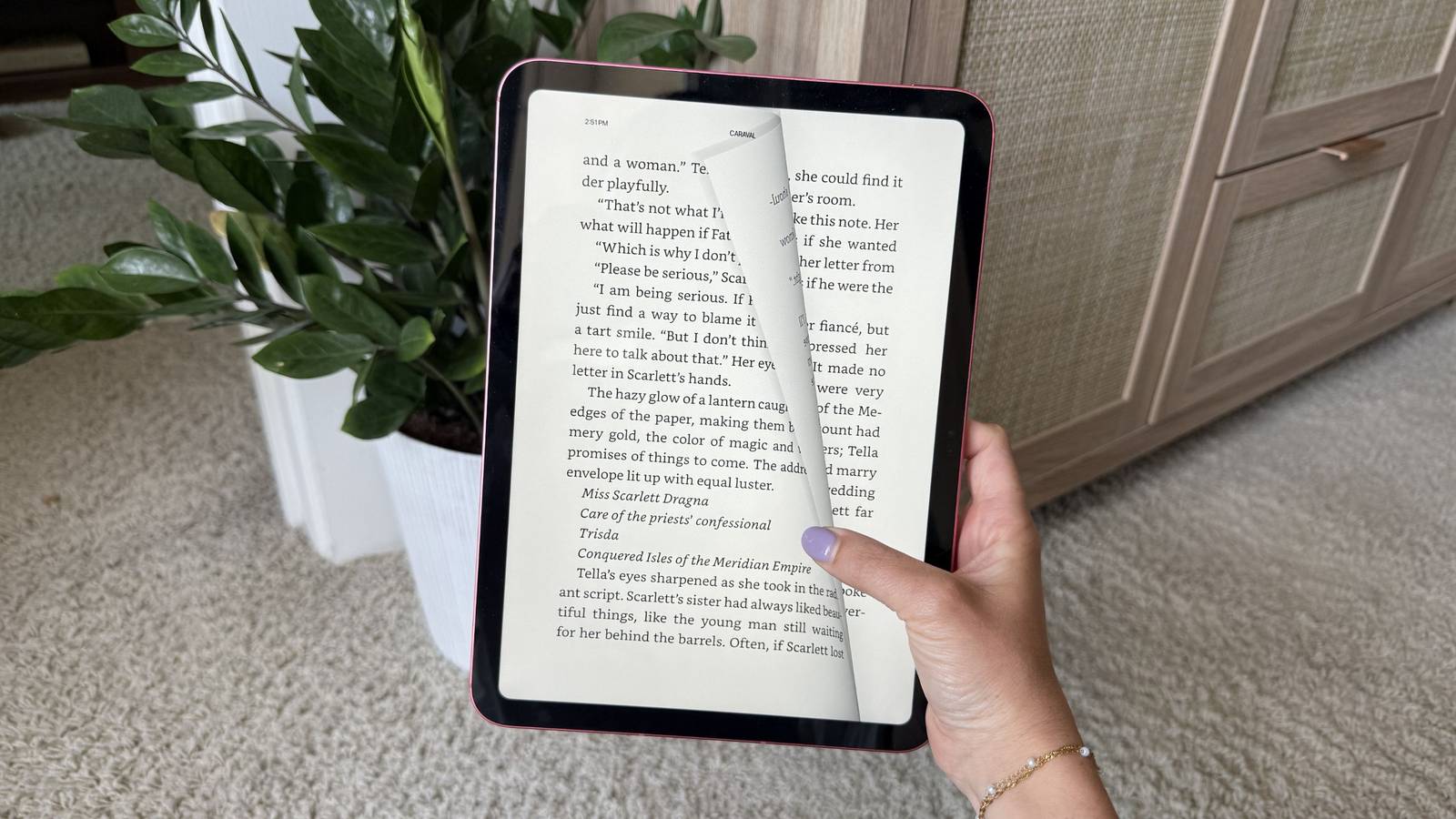
I have two devices I read on: a 2024 Kindle Paperwhite, and a hot pink iPad A16. Both earn their keep in various ways, but most of the time the e-reader reigns supreme when it comes to devouring a book series in one sitting. The iPad is a little clunkier, but with all that clunk comes more power and purpose — it’s quite a handy tool when I want to switch from reading to streaming when I suddenly start craving a different entertainment experience.
Reading on both is wonderful, so don’t get me wrong. However, I recently discovered something while reading on my iPad that’s going to make it hard to go back to my trusty Paperwhite. While Kindles have their paper-like E Ink appeal, iPads have one thing they can’t come close to: page turn animations.

- Brand
-
Apple
- Storage
-
128 GB
- CPU
-
A16
- Operating System
-
iPadOS
Page turn animations are so much better on iPads
E Ink isn’t the same
I know what you’re going to say — Kindles do have page-turn animations. But those “animations” are more of a “wipe” effect that emphasizes moving from one page to another. You can’t turn a page halfway or grab one corner and slowly drag it to the other side of the screen like you would with a real, physical book. It’s a nice touch, Amazon, but E Ink technology doesn’t leave a lot of room for creative expression and realistic page turns.
Enter the iPad. Armed with the Kindle app, its page turns are so much more realistic. You can tap and drag your finger on any part of the right side of the digital page to turn it, which will simulate exactly what the movement would look like if you were grabbing a physical page in a paper book. You can also turn the page as fast or as slow as you’d like — I like to grab a corner of the screen and fiddle with it before going to the next page.
To turn back to the previous page, you can do the same on the left side of the screen — just tap and drag the top, bottom, or middle.
Even if you don’t want to physically swipe or play with the digital pages, just tapping on one side of the screen or the other will put on the page-turning show. It’s a tiny little feature that just adds so much more whimsy to reading an e-book that Kindles just can’t do yet. If Amazon somehow injects that capability into its next e-reader, I’ll be the first one digging through settings to find it.
How to enable page turn animations on your iPad
Via the Kindle app

To unlock this frilly feature on your iPad, follow these instructions:
- Open a book in your Kindle app.
- Tap the top of your screen and choose Aa from the menu bar at the top.
- Choose the More tab.
- Scroll down to the bottom and toggle on Page Turn Animation.
These are the same steps to turn on page “animations” on a Kindle, which makes sense because this is the Kindle app on an iPad.
It isn’t the actual Kindle’s fault that it can’t perform the same intricate animations as an iPad can. The screen technology is completely different, and an iPad will never pull off the same paper-like look E Ink lets Kindles have. However, if you’re reading somewhere without glare and want to add a little flair to your reading session, the iPad’s page turns take first place in my book.

- Developer
-
Amazon
- Offline downloads
-
Yes
- Ads
-
Yes
- Downloads and background play
-
Yes
Amazon’s first-party Kindle app is best known for letting you download and read all your favorite ebooks across your mobile devices, but it can also transfer files to your e-reader.