


One of the beauties of the Apple ecosystem used to be that there weren’t that many choices. If you wanted an iPhone, at one point, the only real decisions you had to make were the carrier, storage, and color. With the 2007 model, even two of those options were irrelevant. Likewise, with early Apple Watches, there was only one real spec — every other choice was about fashion and durability.
Picking a Mac has always been more complicated, but now there are three core laptop form factors, and three desktops, all of them with varying levels of customization. You can’t just default to the cheapest or the most expensive options, either. A cheap model may not fit your needs, and a fully-equipped Mac Studio will set you back over $12,000 before any hardware or software add-ons.
To shepherd you through the shopping process, I’m going to illustrate the questions you should be asking, in roughly the order they should come to mind. There may be some niche considerations in your case, but they’ll probably be easier to deal with once all of these other issues are resolved.
Analyzing the use case essentials
Choose a Mac you can live with

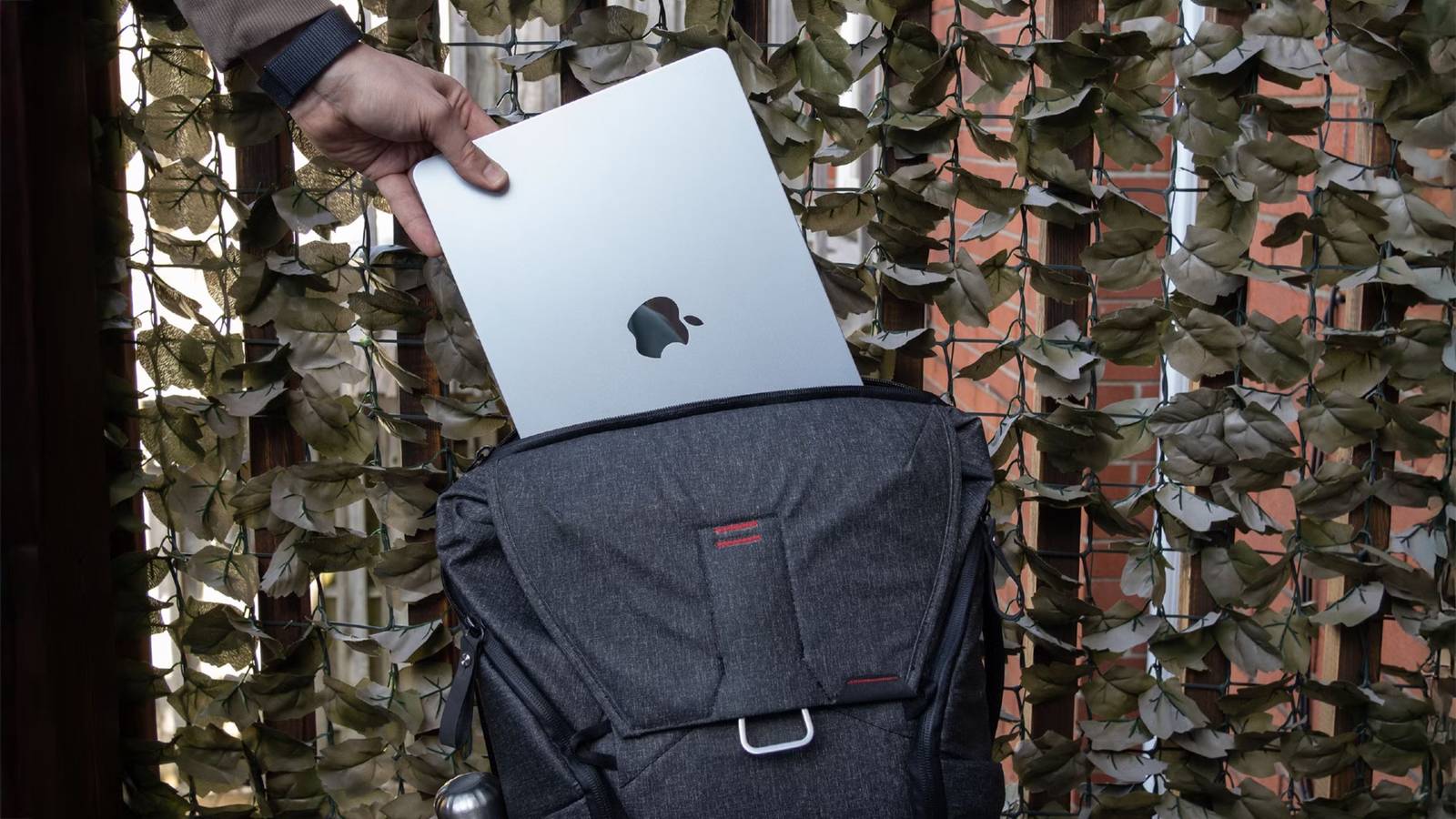
Your very first question should be how much you care about portability. You will, naturally, need a MacBook if you want to take notes in class, or get work done on that flight from Austin to Toronto — but if you’re okay doing all your computing in the same space, there are some definite advantages to picking a Mac mini, iMac, or Mac Studio. The Mini is liable to offer the most bang for the buck if you already have a monitor and other peripherals, and there’s just no comparing the Studio, which is built for extreme tasks like Hollywood-level video production. An iMac may be a nice all-in-one option if you don’t already have a monitor and don’t care much about horsepower — not that you’re going to get weak specs.
Simply asking yourself what you expect to use your Mac for will decide a lot of things for you. If your only interests are email, web browsing, video, and maybe some light productivity — including spreadsheets and presentations — you probably don’t need anything more than a MacBook Neo or a Mac mini. It might be worth stepping up to a MacBook Air or iMac for some perks, like better port options, but even the Neo is capable of tasks like 4K video editing. The savings from choosing a cheaper form factor can be put towards peripherals like mice, monitors, keyboards, and external SSDs.
Speaking about peripherals, though, it’s important to consider ports if you’re planning to make a Mac the foundation of a workstation. This is the first area in which the Neo fails — its best port is a 10Gbps USB 3.x connection, so it can’t take advantage of Thunderbolt docks, much less connect multiple monitors. You may, at best, be able to connect a single 4K 60Hz display, along with an add-on keyboard or mouse. If you do connect a monitor, external storage is going to be problematic, since the only other port is capped at USB 2.0 speeds (480Mbps). That’s just unacceptable in 2026, given that 5Gbps USB 3.0 has been around since 2008.
The more expensive the Mac, the better your port options are going to be. Moreover, spec options tend to increase, and those may deliver more than raw horsepower. Once you look past the Neo, you get to machines with better multitasking capabilities, since they’re based on M-series processors and provide at least 16GB of RAM.
If you need a large amount of RAM, form factor is going to decide your limits. It’s generally difficult or impossible to swap out Apple’s pre-installed memory modules, so if you expect to need 64GB or beyond, that automatically rules out the Neo, Mini, and iMac.
Picking a processor, RAM, and internal storage
Sorting through the confusion

This can be the most baffling part for newcomers, since Apple doesn’t go to great lengths to explain how much you really need for specific tasks. The good news is that for the majority of people, any Mac with an M4 processor and 16GB of RAM is not only going to be fast enough for most apps, but arguably overkill. macOS is so highly optimized for Apple hardware that you may have zero reason to upgrade for four or five years. It can be worth bumping RAM up to 32GB for the sake of futureproofing and specific apps, but you’ll have to weigh that against saving up for your next upgrade. Apple was charging plenty for RAM upgrades before AI datacenters sabotaged the consumer market.
When in doubt, investigate the recommended specs for the apps you want to run, then try to meet or exceed them. And I do mean the recommended ones — requirements are just that, the bare minimum needed to get an app going. DaVinci Resolve, for instance, will technically run on a Neo, but professional use is likely to require an M2 processor or better paired with 32GB or more of RAM. Likewise, while a game like Resident Evil Village will load on an M1 Mac, expect a much smoother experience with an M5. 3D games can be some of the most demanding Mac apps, since they’re combining real-time graphics with physics simulation and other gameplay considerations.
As for internal storage, I typically recommend choosing the smallest drive you can get away with that will fit all the apps you expect to run, allowing some headroom for future apps and OS swap space. Apple often charges far more for storage upgrades than they would normally be worth — choosing 4TB for a Mac Studio adds a whopping $1,800 to your pricetag. When it comes to stashing music, video, documents, and other files, you’re better off buying one or more external SSDs (or using cloud lockers) unless you need an ultra-portable setup.
What about laptop displays?
Bigger isn’t always better

Genuine professionals may want to save up for a 15-inch MacBook Air or 16-inch MacBook Pro, even if they’re overpowered for the apps you plan to run. At first, those dimensions might not seem like huge leaps over the 13- or 14-inch options on other MacBooks — but since screen size is measured diagonally, it can make a major difference in multitasking. My own laptop is a 16-inch model, and it’s sometimes hard to imagine working on the road with anything much smaller, especially when I have dual apps running onscreen.
That said, a 13- or 14-inch Mac can sometimes be preferable no matter what your budget is. Larger laptops are heavier and harder to pack, which makes them harder to travel with, especially if you’re a frequent flyer. My daily driver used to be a 17-inch Razer laptop, but it was such a pain to take out during airport screenings that I never flew with it unless I had to. Trying to pull it out mid-flight in an Economy seat was a no-go. I turned to an 11-inch iPad Pro for movies and TV shows.
If you expect most of your use to be at home, I’d consider buying the most compact MacBook that meets your needs, but docking it with an external monitor. You’ll get the extra real estate and/or color accuracy when you need it, but something that’s much more portable when you don’t. And if you don’t need those features at all, a 13- or 14-inch laptop will be both cheaper and lighter when you’re kicking back on the couch.

- Operating System
-
macOS 26
- CPU
-
A18 Pro
- RAM
-
8GB
- Storage
-
256GB, 512GB