Every time a friend tells me they’re shopping for a new car, I always give them the same advice: make sure it supports Apple CarPlay. So far, I’m happy to report no one has regretted taking it.
The reason is simple — for me, CarPlay has been a total game-changer. I spend a lot of time driving, and when I got my first car with CarPlay (a Hyundai Elantra), I was blown away by how much it improved the experience. Having seamless access to navigation apps like Google Maps, hands-free calling and messaging, and quick access to music streaming apps like Spotify, all through my car’s infotainment screen, makes my commute much more relaxing and safer.
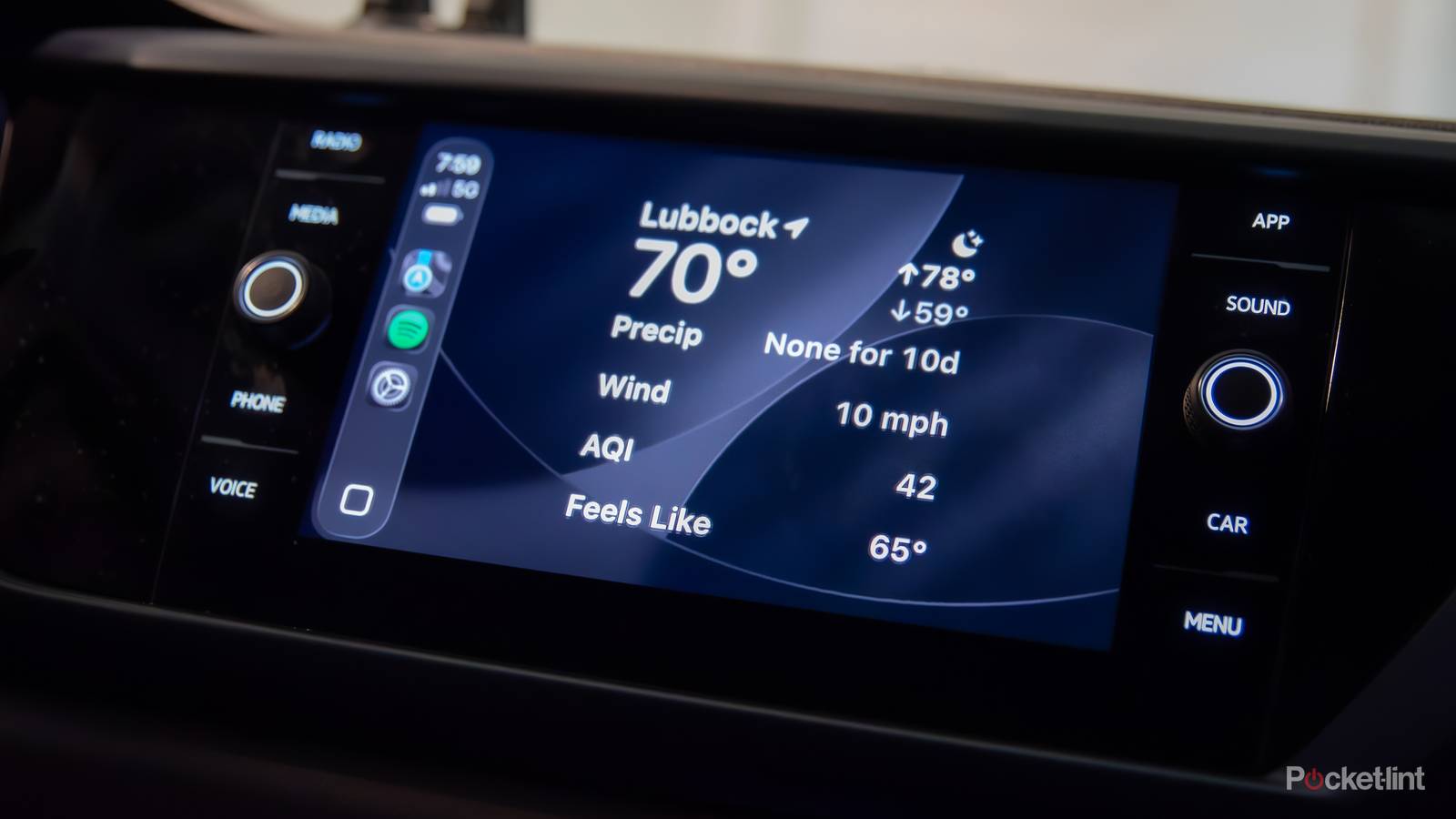
So, naturally, whenever Apple makes changes to CarPlay, it grabs my attention. Last year, Apple rolled out iOS 26, which made major changes to CarPlay, including the new Liquid Glass design (which I’m personally a fan of, though I understand others aren’t) and, more importantly, the addition of a long-requested feature: widgets.
This means you can now set up widgets — similar to the ones on your iPhone — right on your CarPlay screen. That includes things like weather, news, photos, Spotify, Apple Music, and more, so you can see the information you care about at a glance.
That said, since iOS 26 launched, CarPlay widget support has been missing from one crucial app: Apple Sports. But just in time for the MLB season, the Stanley Cup, and the World Cup in June, Apple has finally added it.
You can track your favorite sports teams in CarPlay
There are two widget types: My Teams and League

With the latest update to the Apple Sports app (version 3.10) now available, Apple has added CarPlay widget support, letting you follow live sports scores and track schedules for your favorite leagues, all within the CarPlay widgets interface introduced with iOS 26.
The Apple Sports app has two different widget types for CarPlay: My Teams and League.
My Teams is a widget where you can track the scores and schedules for any of the teams you’ve favorited in the Apple Sports app. For instance, as a fan of the Toronto Blue Jays, I can add the My Teams widget to CarPlay to see when they’re playing and, if the game is ongoing, get live score updates.
The League widget works similarly, but it lets you track game schedules and scores for multiple teams across the leagues you follow, such as the MLB, NHL, or MLS. For example, I also follow the NHL, and with the Stanley Cup ongoing, I can see the schedule and scores for any game.

- Developer
-
Apple
- Price model
-
Free
- Platform
-
iOS
Apple Sports lets you track live scores and stats for your favorite teams and sports.
It’s easy to setup

If you want to add a widget from the Apple Sports app or any other app on your iPhone to CarPlay, it’s fortunately extremely easy.
For starters, go to Settings > General > CarPlay > My Car > Widgets. From there, you’ll see how many widget stacks your car supports (my car supports two, but other cars can have more), and the ability to add widgets to each stack.
Select the Stack you want, then tap the Add Widget button. You’ll then see all the different widget options available, including those from apps like weather, calendar, news, notes, and more, so you can play around with them to create a widget setup you like.
To add a widget from the Apple Sports app, scroll down in the list of widget options and select Sports. Then, you can add a widget for My Teams and League, which I outlined earlier. Personally, I added the My Teams widget to Stack 1 in my car, and the League widget to Stack 2, so I can see them side by side.
Once you’ve done that, the next time you’re using CarPlay, just swipe right from the dashboard view to open the widget screen, where you can browse all the widgets you’ve added to your stacks.