

AI is being pushed everywhere these days and it’s become overwhelming. Every platform seems to have new baked-in AI tools offering different levels of usefulness. Some, like photo editing tools, seem genuinely useful, but I don’t need pointless AI writing tools or Gemini invading my Google Docs and other apps.
That’s why I choose which AI tools I want on my Samsung Galaxy phone and discard the ones I don’t need. It isn’t easy as many are integrated into the system and can affect the functionality of other apps. I think it’s still worth it for my peace of mind. Here’s how I remove unwanted AI features from my Samsung Galaxy.
Gemini
It’s not for everyone

I didn’t ask for Gemini, and it’s bundled into my Android phone by default. I understand that it has its uses, but like all Google apps, it is a privacy risk because it can access my Gmail and Google Docs and use them for training purposes.
Like all Google apps, it is a privacy risk because it can access my Gmail and Google Docs and use them for training purposes.
To remove Gemini, first navigate to Settings => Google => All services => Search , Assistant, and voice => Gemini. Then scroll down until you reach the Digital assistants from Google menu. Tick Google Assistant as the default.
Then go back to Settings => Apps and tap on Gemini. Tap the Disable tab at the bottom of the screen. You’ll get a message saying,” Disabling this app may cause other apps to stop working correctly. Tap on Disable app to continue. You can always enable Gemini again later by using the same steps.
Bixby
Practically bloatware at this stage

Bixby has never been popular, yet Samsung insists on bundling it with every Galaxy phone. It’s a worse AI assistant than Google Gemini and most people ignore it anyway.
It’s a worse AI assistant than Google Gemini and most people ignore it anyway.
To remove Bixby, first navigate to Settings => Advanced features => Side Button and ensure the Long press menu is set to Power Off menu or Google Digital assistant. Then navigate to Settings => Apps and tap on Bixby. Then tap on the Disable tab at the bottom of the screen. You’ll get a message saying,” Disabling this app may cause other apps to stop working correctly. Tap on Disable app to continue.
Camera Assistants
Hit or miss optimization

AI camera assistants are a double-edged sword that are sometimes helpful, but can also ruin some shots in the name of optimization. These tools smooth images, and adjust the lighting and color to make them look better. However, the end result is often over processed images that lose their uniqueness.
To change these settings, go to the Camera app and open the Settings menu. Then tap on Intelligent optimization and choose between Minimum, Medium, or Maximum optimization. You can take a few pictures on each setting to see which you prefer before deciding. If you have the maximum setting activated, you’ll have the option to turn the Scene Optimizer setting on or off.
AI camera assistants are a double-edged sword that are sometimes helpful, but can also ruin some shots in the name of optimization.
The Samsung Galaxy Auto HDR feature can also be a hit or miss, sometimes adding much-needed color and balance to some pictures and making others look oversaturated and noisy. You can turn it off by opening the Camera app, navigating to Camera Assistant, and using the slider to turn Auto HDR on or off. Adaptive pixel combines multiple frames into a single image what capturing low-light images. Again, some users prefer it to get detailed low-light images, while others feel it’s aggressive and makes images too sharp. You can see for yourself by navigating to Camera Settings => Camera Assistant => High resolution settings and use the slider to turn this feature on or off.
Galaxy AI features
Choose the ones you want

Samsung has baked various AI features into its Galaxy phones and some are more useful than others. The good news is that it’s easy to deactivate the AI features you don’t like and reactivate them later if you feel like using them. I like experimenting with new tech and like to try all of them to separate the must-have tools from gimmicky features.
It’s easy to deactivate the AI features you don’t like and reactivate them later if you feel like using them.
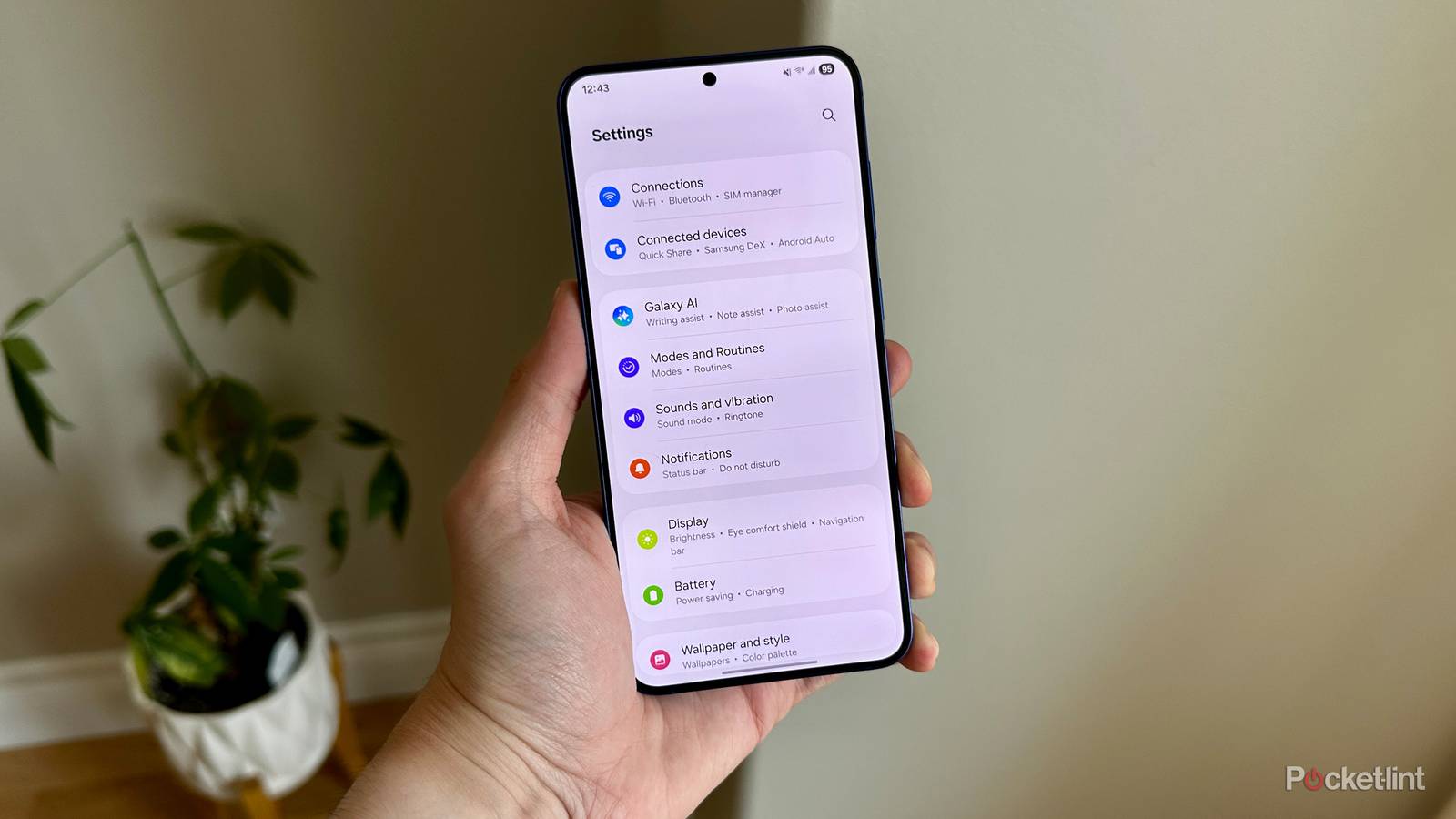
To customize your Galaxy AI features, navigate to Settings => Galaxy AI. You’ll see a list of features like Writing Assist, Audio Eraser, and Photo ambient wallpaper with descriptions of what each does. You can then tap on the relevant tool from the list and use the slider to activate or deactivate them.
AI Overview
Go directly to the source

AI overview now dominates all searches and combines data from various sources to provide the best answer. The problem is that it often presents incorrect information while taking traffic away from legitimate websites known as trustworthy sources. Whether you like using the AI overview or not is up to you, but here’s the solution to get rid of it.
Whether you like using the AI overview or not is up to you, but here’s the solution to get rid of it.
Open Chrome and open a new tab. Then navigate to www.tenbluelinks.org. Choose your browser. In this case, it is Chrome Android. Then navigate to the three dots in the top right corner and go to Settings. Open Search engine and tick Google Web in the Recently Visited list. Your future Google searches will revert to the standard web version without an AI overview.

- SoC
-
Snapdragon 8 Elite Gen 5
- Display
-
6.9-inch Dynamic Super AMOLED 2X
- RAM
-
12 or 16 GB
- Storage
-
256GB, 512GB, or 1TB
- Battery
-
5,000 mAh
- Operating System
-
Android