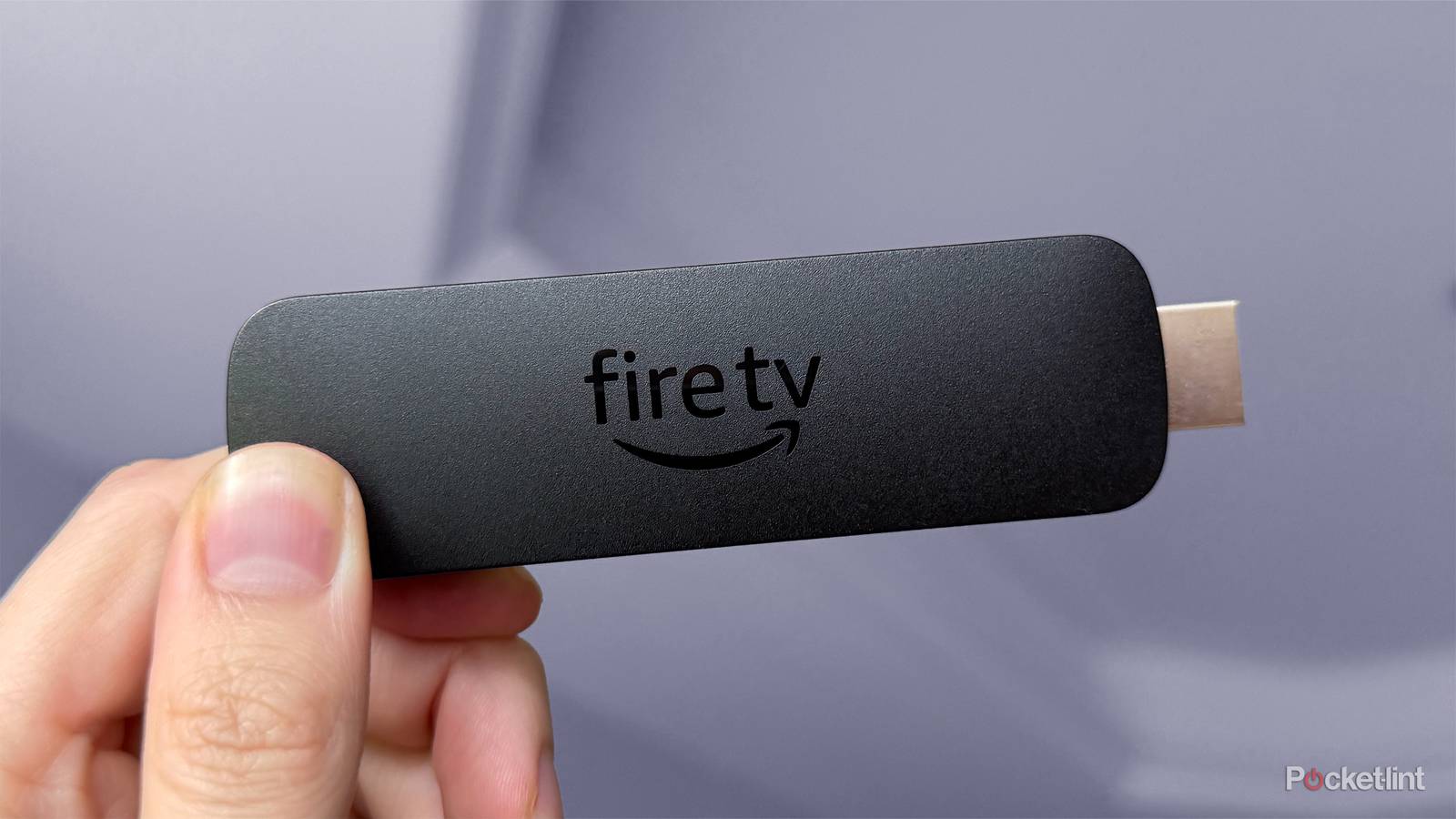
If I had to pinpoint one thing that has helped make Fire Sticks so popular for streaming, other than their affordability, it would be how easy they are to use. You plop it out of the box, plug it into your TV’s HDMI port, and you can be streaming shows and movies from your favorite streaming platforms in seconds, whether it’s Netflix, Disney+, Prime Video, HBO Max, YouTube TV, and the list goes on.
However, as someone who uses a Fire TV Stick 4K Max every day for streaming, one thing I often have to remind myself is that there’s much more a Fire Stick can do beyond just streaming. Thanks to the Amazon Appstore and the ability to sideload apps on Android-based Fire Sticks, there are tons of apps you can download that make them way more useful.
Here are five of my favorite apps I’ve downloaded on my Fire Stick that go beyond its basic streaming capabilities and have made it a lot more fun and easier to use.

- Brand
-
Amazon
- Resolution
-
4K
- Audio codecs
-
Dolby Atmos
Downloader
Sideloading made easy

The first app I have to mention right off the bat is Downloader by AFTV News. It’s available for free on the Amazon Appstore, and it lets you easily download third-party apps to sideload onto your Fire Stick. So if there’s a particular app you’ve seen that’s not available in the Appstore, like Kodi or a custom launcher, you can use the Downloader app to install the APK file directly on your device. You’ll just have to find the URL or Downloader code for the app you want to download.
It’s worth noting that if you want to sideload apps you’ve downloaded using Downloader onto your Fire Stick, you will need to enable Developer mode and allow installations from unknown sources. To do this, go to Settings > My Fire TV. From there, repeatedly click the name of your device a few times, and then a new option called Developer Options will appear. From there, toggle on “Apps from unknown sources” to allow the installation of apps you get from Downloader.
Downloader is not available on the Fire TV Stick 4K Select or the new Fire TV Stick HD, as both of them run Vega OS, which is Linux-based and doesn’t support sideloading.

- Developer
-
AFTV News
- Subscription cost
-
No
- Ads
-
Yes
Nvidia GeForce Now
Turn your Fire Stick into a gaming PC

Cloud gaming is one of the standout features of Amazon’s Fire TV Sticks, since other streamers, such as Roku devices and the Apple TV 4K, don’t support it. For quite some time, Xbox and Amazon Luna have been the cloud gaming staples on Fire TV, but in February, Nvidia launched its GeForce Now app on the Fire TV Stick 4K Plus and 4K Max, which lets you turn your streaming stick into a powerful gaming PC.
So if you feel like playing some games on your TV one night but don’t have a console or a gaming PC, Nvidia GeForce Now lets you stream a bunch of PC games for free (supported by ads) on your TV from the cloud, such as Fortnite, Counter Strike 2, Marvel Rivals, as well as games you already own on platforms like Steam and Epic Games. The only thing you need to play is a Bluetooth controller.

- Developer
-
Nvidia
- Subscription cost
-
Yes
- Offline downloads
-
No
- Free trial
-
Yes
Plex
Watch your own media easily

When I first got my Fire TV Stick 4K Max, Plex was one of the first apps I downloaded. Yes, it’s technically a streaming app, but what’s unique about Plex is its ability to let you create and access your own offline media library from anywhere. So if you have a bunch of media saved on your PC, Plex is a handy way to access it on the big screen by setting up a server and streaming it from your PC to your Fire Stick, or even to your phone or tablet.
In addition to being one of the best media server apps out there, Plex offers a large collection of free, ad-supported TV shows and movies to watch, as well as the ability to buy or rent them. This means that if there’s something you don’t have on your media server, you can see if Plex offers it for free or for purchase.

- notable shows
-
Broadchurch, The Kids in the Hall, The Fall
- notable movies
-
Warrior, A Walk to Remember, Heat, Halloween
- Premium Subscription
-
No
- Originals
-
No
VPNs
Watch content from outside your region

One big advantage Fire Sticks have over Roku devices is the ability to download and use VPNs.
If you’re not familiar with how a VPN works, it encrypts your internet traffic and hides your IP address, helping keep your browsing private and your real location hidden. On a Fire Stick, you can use a VPN to access content from streaming services that aren’t available in your region. Plus, when traveling abroad, it lets you set your location back home so you can access any local content you’re missing.
There are plenty of VPN apps on the Amazon Appstore, including NordVPN, IPVanish, Surfshark, ExpressVPN, and ProtonVPN. While you can download all these apps for free, most of them do require a paid subscription to use.
TuneIn Radio
Listen to hundreds of radio stations on your TV

Finally, the last Fire Stick app I want to highlight is TuneIn Radio, which you can download for free from the Amazon Appstore. As the name suggests, it’s a radio app that lets you listen to hundreds of radio stations right on your TV. I use it all the time to listen to sports broadcasts and the news, and to enjoy music throughout the day when I don’t want to use Spotify.
Typically, I leave TuneIn Radio playing on my TV while I’m working or doing chores around the house, and it’s nice to have something to play that doesn’t require me to keep my eyes on the screen.