- “I am in the first image, and I want myself to be replaced with the person in the second image, everything else in my original image should be same, except me.
- Everything remains the same, including the voice, the body movement, the background, and the lighting, except for the person in the video.
- Once the video is generated, download it and have fun sharing it with your friends and on social media.
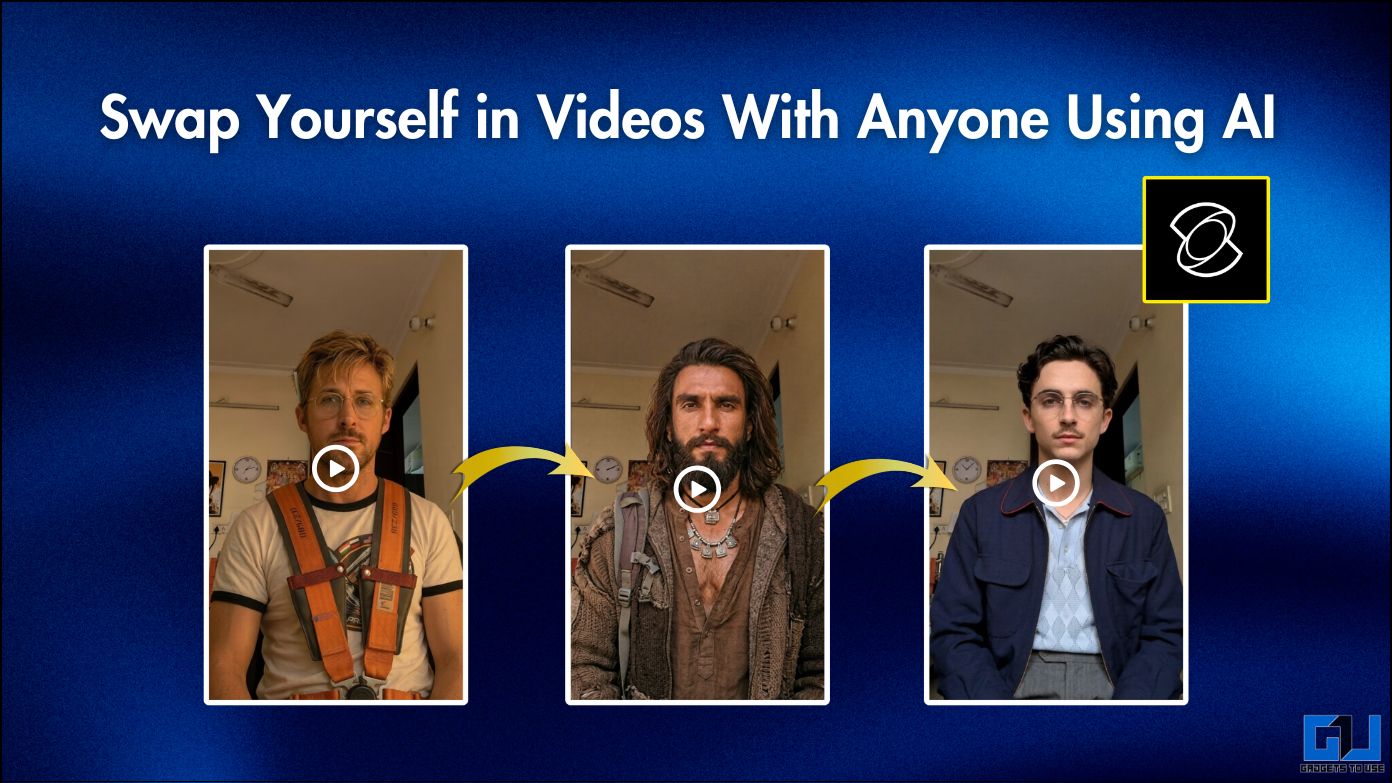
There’s a new trend of AI videos going viral. In this, people are making videos in which they swap themselves with their favourite character. Everything remains the same, including the voice, the body movement, the background, and the lighting, except for the person in the video. And we know how advanced AI video creation has become. So much so that it would be really hard for someone less informed to tell whether it’s real or not. Nonetheless, you can also try it and have fun with the tool. Just follow the step-by-step guide below.
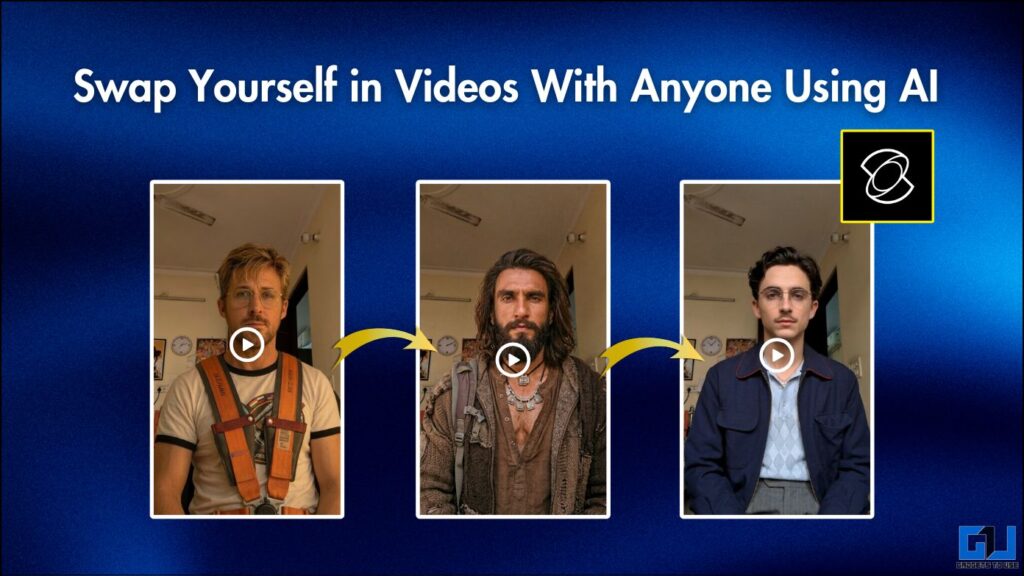
Swap Yourself in Videos With Anyone Using AI
Recently, many video generation platforms have emerged, specializing in face swapping. Especially since OpenAI has announced that Sora will be discontinued, many new and existing tools have gained popularity. The tool we will be using is KlingAI 2.6 from KIE API.
Steps to Replace Yourself in Videos With Anyone Using Kling AI
1. Record a video facing the camera. Then, take a screenshot of a frame from the video.
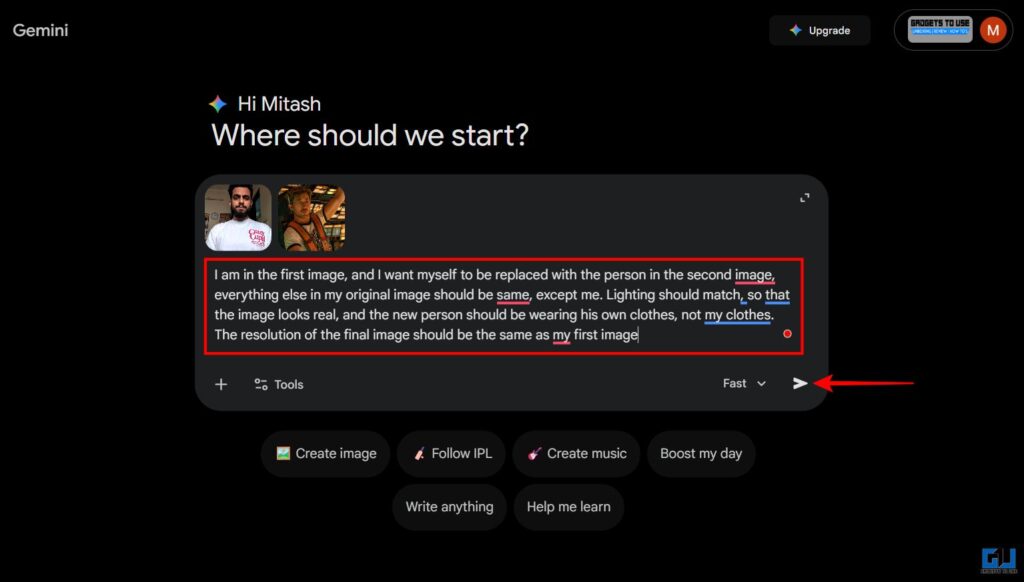
2. Open Google Gemini. Upload the screenshot along with the image of the character you want to replace yourself with. After that, copy this prompt and paste it in the chat:
“I am in the first image, and I want myself to be replaced with the person in the second image, everything else in my original image should be same, except me. Lighting should match, so that the image looks real, and the new person should be wearing his own clothes, not my clothes. The resolution of the final image should be the same as my first image“. Hit Enter.
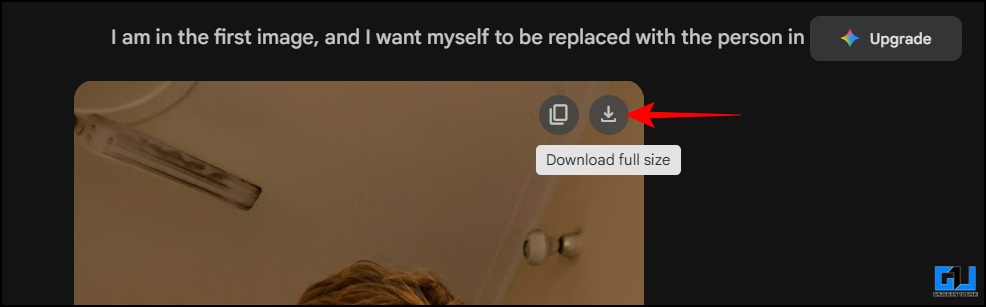
3. The image will be generated featuring the character. Download it.
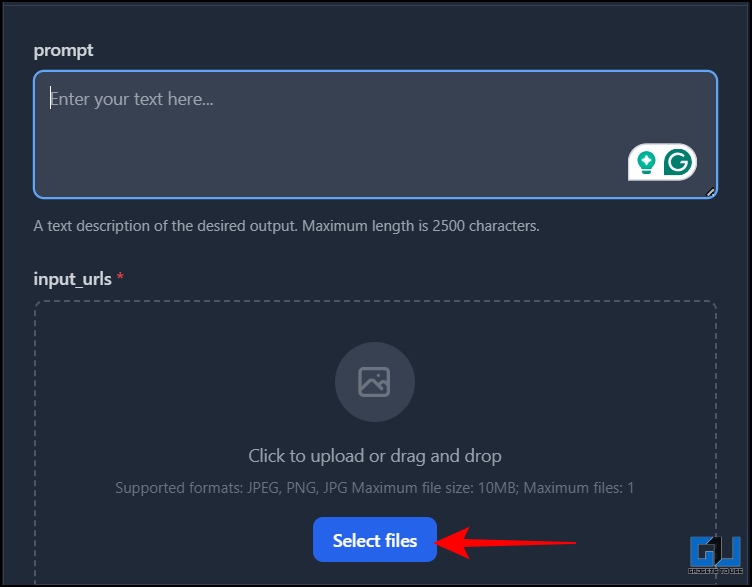
4. Open the Kling AI 2.6 Motion Control model. Scroll down a bit and remove the sample image under input_urls. Now, upload the image you generated on Gemini. Make sure the image file size is under 10 MB.
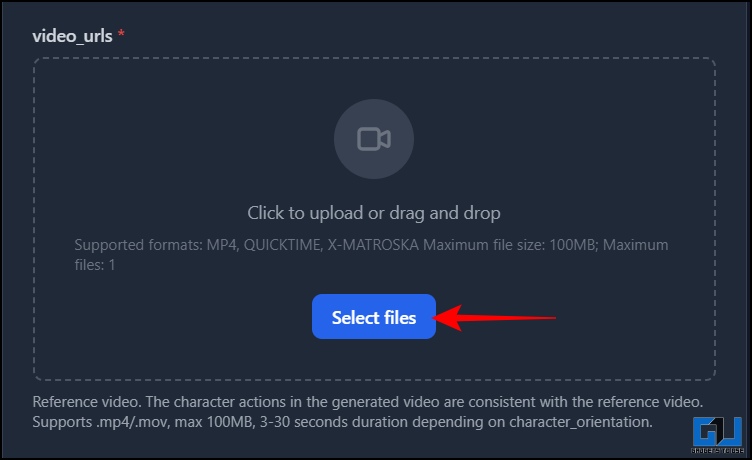
5. Scroll further and remove any sample video there. Then upload the video in which you’re facing the camera. Also, make sure the video file size is under 100 MB.
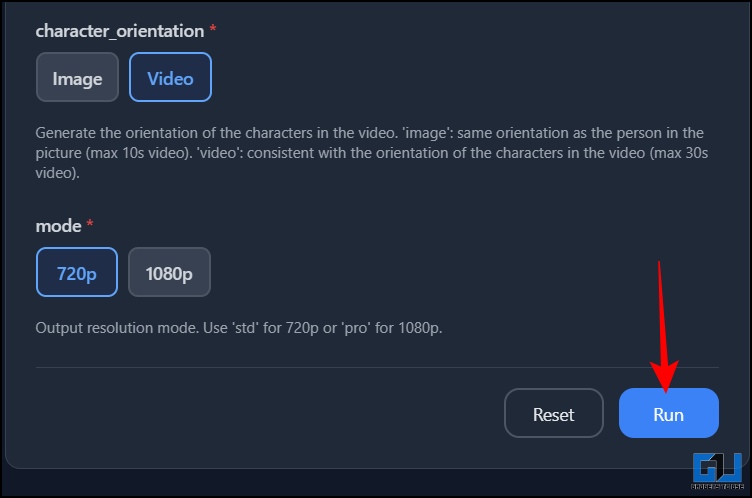
6. After that, scroll a bit and make sure ‘video’ is selected under character_orientation. Also, select the video quality under ‘mode’. As you hit ‘Run’, you will be asked to log in. You can log in with either your Google or Microsoft account. Click ‘Run’ again after logging in.
7. Processing will begin, and it will take around 8-10 minutes to generate the video.
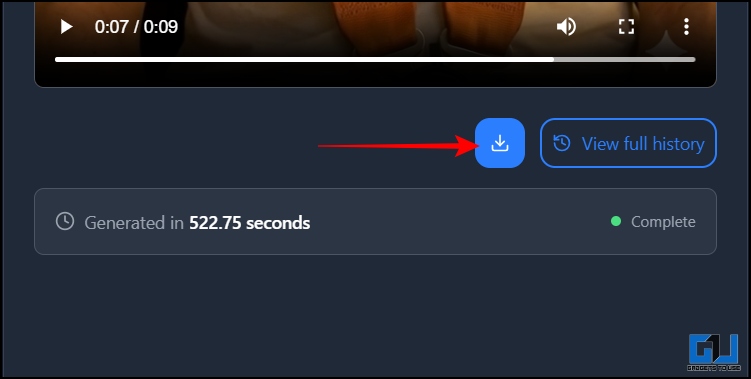
Once the video is generated, download it and have fun sharing it with your friends and on social media. Meanwhile, keep in mind that you should avoid uploading your private photos or videos on platforms like these. Furthermore, you should not upload anyone’s images or videos without their consent or misuse the tool in any way.
FAQs
Q. Is Kling AI free to use?
The first video you generate will be free, after which you will have to purchase credits to generate videos.
Q. Can I swap myself to someone in any video?
You can swap yourself with someone in any video. However, do ensure that the video is well-lit and that you are facing the camera.
Wrapping Up
It’s exciting to see AI’s capabilities grow day by day. You can become your favorite character or recreate viral scenes and even make memes or reels. The possibilities are endless. Therefore, you should give it a go yourself. Moreover, for the best results, use a well-lit video and high-resolution images. To avoid distortions, avoid fast movements while shooting the video. Also, ensure that you use these tools ethically. Importantly, you should not use the tool for impersonation.
You may also like to read:
Have any questions related to our how-to guides, or anything in the world of technology? Check out our new GadgetsToUse AI Chatbot for free, powered by ChatGPT.
You can also follow us for instant tech news at Google News or for tips and tricks, smartphones & gadgets reviews, join the GadgetsToUse Telegram Group, or subscribe to the GadgetsToUse Youtube Channel for the latest review videos.
⬇️ GadgetsToUse Site Search ⬇️
You can find anything on our website, inlcuding tech how to, solution or reviews using google site search box below.
Was this article helpful?
YesNo