

If you’ve been using an LG TV for a while, chances are it’s not as fast as it was when you first unboxed it. This is because smart TVs are a lot like computers, and over time, they can slow down as apps accumulate data and background processes build up.
The good news? A slowdown isn’t necessarily permanent, and it’s usually easy to fix. Like other smart TVs out there, LG models have a few easy tricks you can use to speed things up and make your TV feel like new again. I’ve personally tried several of these on my LG C5 TV, and they’ve noticeably sped up my TV and improved my everyday enjoyment of it — and they can do the same for you, too.
This clears your LG TV’s cache data

The first thing I did when I noticed my LG TV starting to feel a bit choppy was to use a handy tool built into LG smart TVs called Memory Optimizer. As the name suggests, it helps optimize your TV’s memory usage by not only clearing your TV’s cache data (temporary data that apps build up), but it also closes any apps and background processes on your TV and clears its RAM, all with the goal of improving performance.
I’ve used Memory Optimizer lots of times on my LG C5, and it only takes about 10 seconds to run, so it’s not a long process by any means. Though it could take longer, depending on how many apps you have and use on your TV. Here’s how to use it:
1. Press the Settings button on your remote (the gear icon).
2. Select Settings in the side menu, which will appear on the left side of your screen.
3. Go to Support.
4. Select Memory Optimizer.
5. Press Start.
Restart your TV
Rebooting your TV can help resolve performance issues

I know it sounds simple, but if you’re having issues with your LG TV, restarting it can actually be the best fix. When you turn your TV off each day, it usually isn’t fully powering down — it’s just going into what’s called a standby/hibernation state. That’s what lets it turn back on quickly, similar to how many laptops work.
So, with that in mind, there are two main ways to properly restart your TV. Doing this resets all its processes and gives it a clean boot, which can help clear up performance issues and speed things up.
The easiest way is to simply unplug your TV from the wall, wait a few minutes, and then plug it back in. If your TV is wall-mounted or the power cord is hard to reach, you can also restart it by holding down the TV’s physical power button for about 30 seconds. On newer models, this button is usually located under the red LED on the front that lights up when the TV is off.
Uninstall any apps you don’t need
Every little bit helps

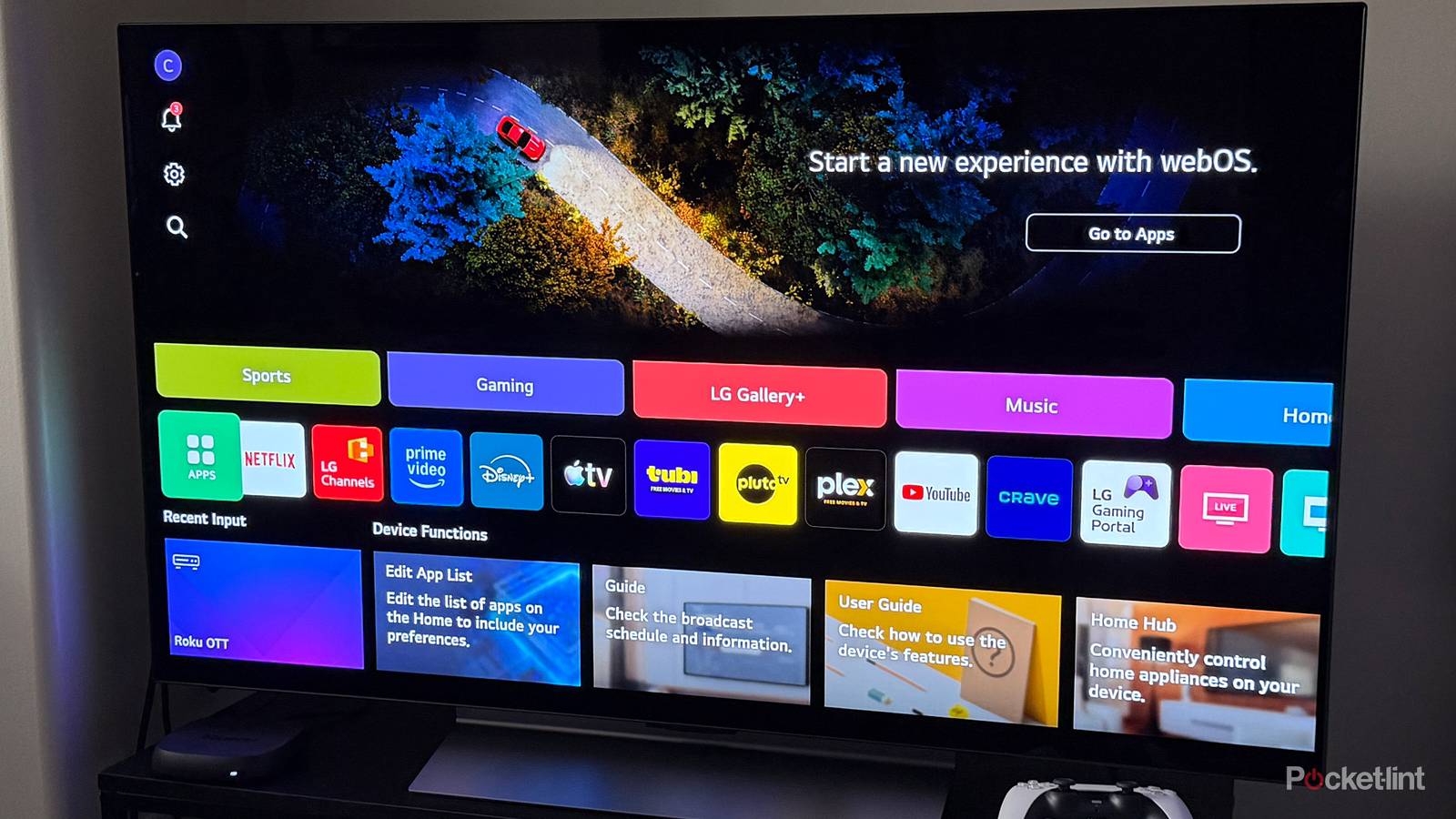
LG TVs come preinstalled with a number of streaming apps, but chances are you’ve added plenty more over time — not just for streaming, but for things like music, gaming, fitness, and managing your smart home.
Needless to say, the amount of apps you have can add up quickly. LG smart TVs don’t have unlimited storage, so loading them up with too many apps can start to slow things down, just like on a smartphone or PC. I’m not saying you don’t need to go on a huge deletion spree, but it’s worth taking a look at what you’ve installed and removing anything you haven’t used in a while. This not only frees up storage space but also cuts down on the amount of cached data building up in the background.
To uninstall apps on your LG TV, go to the home screen, hover over the app, and hold down the select button. You should see options to hide or uninstall it (the garbage bin icon). Select delete, and the app will be removed from your TV. And if you ever want it back, you can always reinstall it from LG’s app store.
Try using your TV’s Ethernet port
Ethernet is more reliable than Wi-Fi

A common issue on smart TVs — whether it’s LG or any other brand — is streaming apps taking forever to load or constantly buffering. There can be a lot of reasons for this, but Wi-Fi often plays a big role. Unlike Ethernet, which connects directly to your router, Wi-Fi is more vulnerable to interference from walls, distance, and the number of devices on your network, all of which can slow down your TV’s connection.
One solution worth trying, if you can, is plugging your LG TV directly into your router using its Ethernet port. This bypasses Wi-Fi’s inconsistencies and can make streaming a lot smoother.
That said, I want to emphasize that your mileage may vary when using Ethernet. If your Wi-Fi is already solid, and you want to try to make things faster, switching to Ethernet could actually slow things down. LG TVs (and the vast majority of smart TVs) use a 10/100 Ethernet port instead of a Gigabit port, which is capped at a 100 Mbps download speed. So in some cases, your Wi-Fi might actually be faster than Ethernet.
My ultimate recommendation is: if you have slow Wi-Fi, use Ethernet. Otherwise, it might not be worth it. If you’re curious and want to learn more about Ethernet on smart TVs, I have another story on Pocket-lint where I dive deeper into this topic and show you how to test your TV’s Wi-Fi speed, which you can read here.
Update your TV or factory reset it
A factory reset should be used only as a last resort

If you’ve tried everything to speed up your LG TV, but it’s still slow and acting up, there are two last things you can try: updating it or performing a factory reset.
To check for updates, go to Settings > Support > Software Update. Updates often add new features and sometimes improve performance through optimizations, making your TV run faster, so it’s worth installing the latest update if one is available, and also enabling Auto Update if it isn’t turned on already.
If that doesn’t do the trick, a factory reset is your final option. This completely restores your TV to how it was when you first pulled it out of the box — all your apps are removed, settings are reset to default, and it essentially acts like it’s brand new. A factory reset can often fix lingering glitches or performance issues, so it’s a worthwhile option if nothing else works. To do it on your LG TV, go to Settings > General > System > Reset to Initial Settings.