



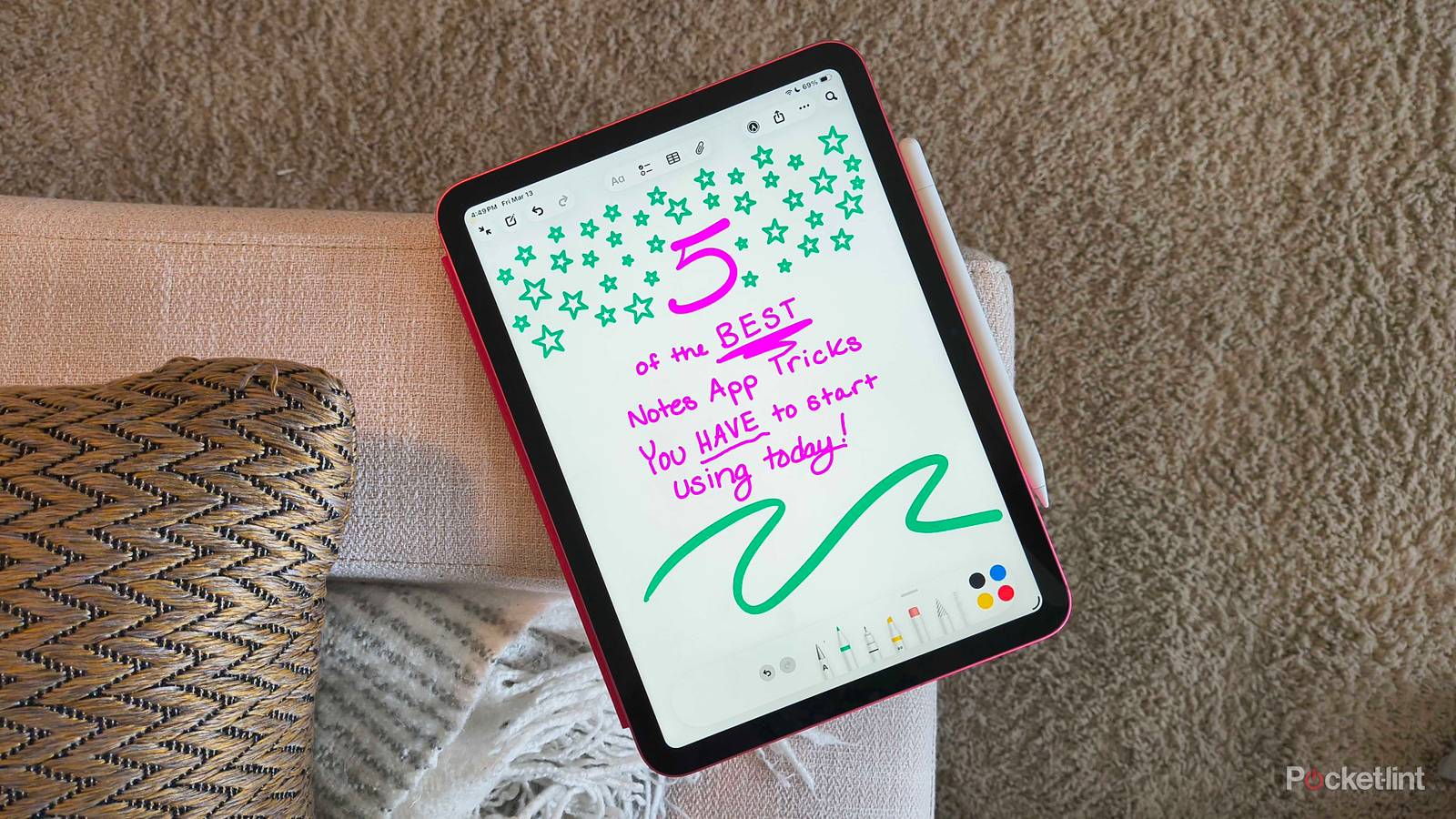
As a loyal Apple Notes user, I have well over 900 notes stowed away in my iCloud. They include the typical grocery lists, to-do reminders, and random thoughts ranging from what recipe I’d like to try that evening to a 3AM poetry ramble when inspiration struck once (or twice… or a dozen times). And while I’m quite a professional when it comes to managing my notes on my iPhone and MacBook, I’ve recently discovered the magic that comes when you add an iPad and Apple Pencil to the lineup.
There’s a handful of tricks and features hiding within Apple Notes that, when you start using them, completely change how you take notes on your iPad. Here are my five favorite ones.

- Brand
-
Apple
- Storage
-
128 GB
- CPU
-
A16
- Operating System
-
iPadOS
Make the keyboard smaller
And easier to type on

Without a keyboard, the iPad is quite awkward to type on. The keyboard is just too wide, and my fingers can’t comfortably type like I would on a computer, but my hands tire when I try to type with my thumbs like I would on an iPhone. My solution doesn’t fix all the qualms (only an attachable keyboard does), but you can make the keyboard tiny and drag it wherever you want on the screen with just a couple of movements.
Take two fingers and pinch in over the keyboard, like you’re zooming out on a picture. The keyboard will be minimized, and then you can use the three-dot menu to drag it wherever you want on the screen. I also love it because the giant keyboard takes up way too much of the screen when I’m trying to see what I’ve already written.
Refine handwriting automatically
Smooths out any messy scribblings

Let’s bring your Apple Pencil into the fun. Not everyone is blessed with picture-perfect handwriting, but that doesn’t mean you don’t want to take handwritten notes every once in a while. Luckily, you can enable a specific setting right within the Notes app that literally refines your scribbles.
At the top of your screen, make sure you’re in writing mode by tapping the circle with the pen inside it. Then, in the pencil option menu at the bottom of your screen, find the three-dot icon on the far right and tap it. There will be a pop-up that includes a feature called Auto-Refine Handwriting — toggle it on.
Now, when you write a particularly messy string of letters, your iPad will automatically straighten, smooth, and clean up your handwriting to make it more legible.
Create perfect shapes
From imperfect handwriting

This one is my favorite. If you like to doodle around your notes, or just want the perfect box or circle, Apple enables perfectionism. If you draw a basic shape — say, a circle, square, rectangle, triangle, oval, etc. — and hold the tip of your Apple Pencil down for an extra moment, your iPad will automatically refine it and make it a more formal and flawless shape. I discovered you can also draw hearts, stars, and even chat bubbles.
If you like the imperfect aesthetic and want to go back, don’t worry. You can always hit undo in the toolbar at the bottom to return your shape to its former glory.
Stop using the eraser
There’s a shortcut for getting rid of mistakes

When I first started using my Apple Pencil, I grew so irritated by having to go back into the toolbar to get the eraser every time I made a mistake. Then, with a little setting study, I discovered you could actually scratch over something you just wrote, keep holding the pencil over it for a moment, and it would disappear.
While I wish Apple had chosen something more intuitive, like the Kindle Scribe’s eraser end of the pen, I do admit that there’s something so satisfying about literally scratching out your digital mistakes.
Enable quick calculations
I wish I had this in middle school

Basic math haters, this one’s for you. If you’re doing quick calculations in your notes, Apple has a smart tool built right into the Notes app that solves the equations you write before you can solve them yourself.
- Open a note.
- Tap the three dots in the top-right corner.
- Choose Math Results.
- Select Insert Results.

Now, all you need to do is write an equation and add an equal-sign to the end. Apple will turn the whole thing gold before leaving the answer glimmering on the other side of the equal-sign. And if you need to go in and change any variables, your iPad will update the answer automatically, too.