



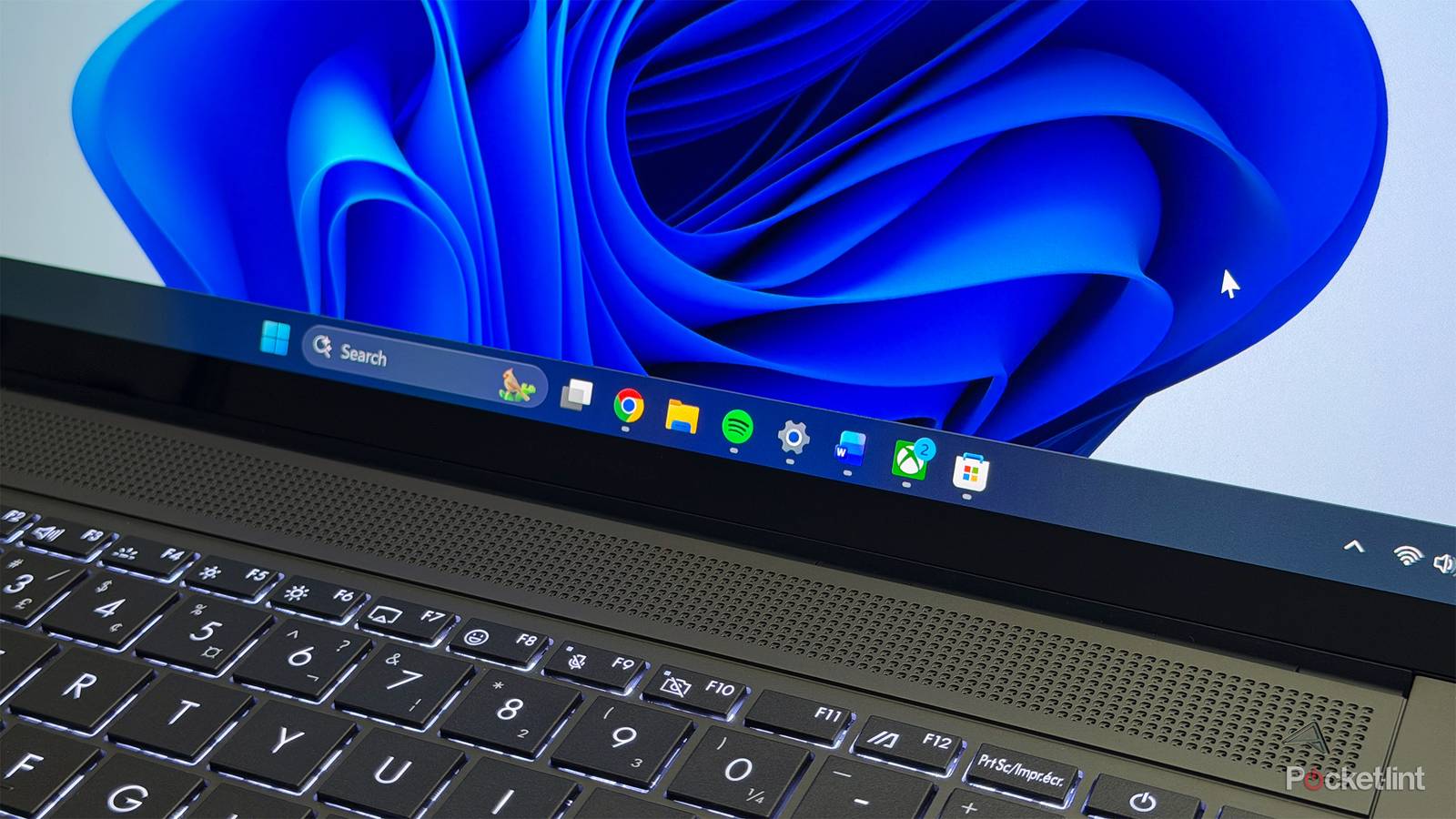
Ultimately, at some point, there’s only so much software can do to fix a Windows PC’s performance. You can’t expect a five-year-old machine to keep up with the latest in photorealistic 3D games, or edit 4K video as smooth as butter. And with antivirus protection being on by default, you can’t blame viruses the way some parents in the ’90s used to.
That said, you can and should make a few changes to Windows 11 if you want to squeeze the most out of it. It’s not that the software is crippled out of the box — simply put, Microsoft’s biggest concern is making sure you have a reliable experience that doesn’t impact battery life, particularly on budget laptops. The company makes it relatively easy to boost framerates when that takes priority.
Power Mode
Road warriors, be careful

Case in point for Microsoft’s priorities is Windows 11’s Power Mode(s). By default, your PC is probably set to Balanced, which is actually fine under normal circumstances. This delivers most of the performance your PC is capable of without risking excess heat or battery drain.
Much like a lot of things that claim to be balanced, though, this option can deprive you of the full effect. If you want to see what your PC is truly capable of, it’s time to head over to Settings -> System -> Power & battery and select Best Performance from the Power Mode drop-down menus. On laptops, there are separate Plugged in and Battery menus — I strongly suggest you stick to one of the other two Power Modes for Battery, unless you’re planning to play games for a couple hours on the couch.
You may want additional cooling help, such as external fans, a laptop stand, and/or a slightly lower setting on the thermostat.
Runtime is the main casualty of selecting Best Performance, but heat can be just as serious an issue. You won’t notice anything unusual if you’re just running Chrome or Excel. In a 3D game like Space Marine 2, however, or even PUBG, your PC may get noticeably hot, forcing it to spin up its fans as fast as they’ll go. This is typically just a noise concern — yet if a room is already unusually warm, you could be shortening the lifespan of your PC. You may want additional cooling help, such as external fans, a laptop stand, and/or a slightly lower setting on the thermostat. Hardcore desktop gamers will frequently install all-in-one (AIO) coolers.
Hardware-accelerated GPU scheduling, and optimization for windowed games
There’s so much going on behind the scenes

If you’re a casual (i.e. practical) PC user, or just relatively new to the scene, you might not be aware of how much is going on behind the scenes to make games and other high-end apps run seamlessly. When I was a kid in the early ’90s, gamers were still messing around with IRQ settings to get devices like soundcards to work. Modern Windows PCs are not only plug-and-play, but so powerful that audio processing is an afterthought.
Another one of those tasks is GPU scheduling, which, to oversimplify, decides what functions need to be pushed to your graphics processor and when. Normally this is handled by your CPU — but this can result in unnecessary lag, since a frame might be waiting a brief moment before it goes through the rendering pipeline.
If you head over to Settings -> System -> Display -> Graphics, you can toggle on something called Hardware-accelerated GPU scheduling. This shifts the scheduling burden over to your GPU, in theory reducing lag, and allowing your CPU to perform better in some circumstances. I say “in theory” because many apps see little to no benefit, and in rare cases, the feature can prevent an app from running properly. It’s usually harmless to have on, though, and when it does have benefits, they can be tangible.
While you’re in the Graphics menu, be sure to enable Optimizations for windowed games. Most PC games are built to run in fullscreen mode for both immersion and full control over a PC’s resources. If you want to play something like Balatro or Blasphemous in a window, though, this feature is a must-have.
Startup Apps
How many do you really need?

When you’re primarily concerned about getting work done, it can be convenient to have your most-used apps locked and loaded the moment you boot Windows. There’s a few I insist on myself, such as Slack and Google Drive.
The more apps you have running, however, the greater the burden on your PC’s CPU and RAM, and potentially your GPU as well. You can reduce this by keeping an app minimized in the system tray or taskbar — but not completely. With a large enough number of apps, even a high-end gaming PC will be brought to its knees.
Check what’s set to launch at boot by going to Settings -> Apps -> Startup. If you recognize something you don’t need running constantly, it should probably be toggled off, and only launched as needed. Just be careful, as some of the listings here may be for services that support key functions. You don’t want to accidentally kill the custom features of your mouse or keyboard, for instance, or Creative Cloud services if you use Photoshop every day. As long as Photoshop itself isn’t running in the background while you try to play PUBG, you should be fine.
Storage Sense
Avoiding the hassle of manual cleanup

You might be forgiven for thinking the space on your hard drive isn’t a big deal, performance-wise. Most important is relieving any CPU and GPU bottlenecks, including RAM and VRAM. Nevertheless, Windows and its apps often have to resort to temporary swap space on your SSD(s), say if you’re playing an open-world game where the map data is far larger than the amount of any RAM player will have. Apps can keep running without all the space they ask for — but they’ll inevitably slow down as they have to erase and rewrite data constantly.
You should probably leave cloud sync settings alone, and avoid letting it manage your Downloads folder unless you never stash anything important there for long.
One way of keeping this under control is Settings -> System -> Storage -> Storage Sense. Make sure both Cleanup of temporary files and Automatic User content cleanup are on. Under cleanup schedules, set Run Storage Sense to During low free disk space, but you’ll have to use your best judgment for all the other variables. As a rule, you can be pretty aggressive about letting Windows empty the Recycle Bin. You should probably leave cloud sync settings alone, though, and avoid letting it manage your Downloads folder unless you never stash anything important there for long.
Keep in mind that Storage Sense can only do so much. If nothing’s changing, you may need to bite the bullet and uninstall unused apps, and scour your folders for large, unnecessary files. You might like the idea of having those 4K copies of the Rocky movies on your computer, but if you’ve seen them all dozens of times, maybe it’s time to move them to an external backup drive for a while.