



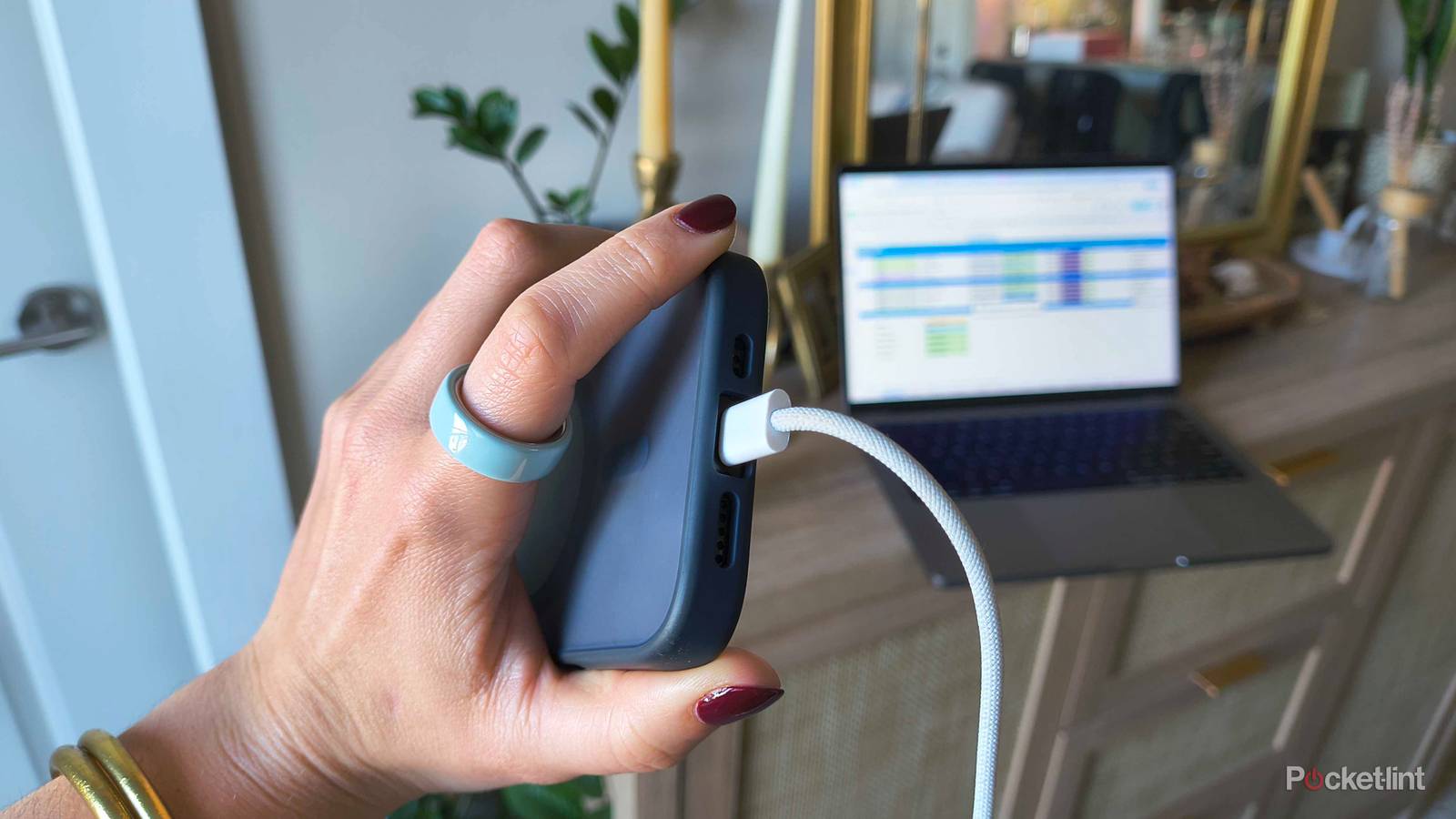
USB isn’t the sexiest topic out there, I’ll admit. But it goes without saying that our lives are pretty dependent on it, even in an age of Wi-Fi and Qi2 chargers. Nikola Tesla’s dream of wireless power isn’t quite here yet, and wired data connections are often far faster than 5G or Wi-Fi 7. A portless smartphone isn’t going to hit your doorstep anytime soon, as much as some executives might dream about the idea.
All this makes it essential to understand how USB works, if just on a day-to-day, practical level. You might be surprised at what you’re getting wrong, although frequently, that’s not your fault. Gear makers regularly fail to educate the public, or even label products properly, leaving it up to us to sort out the confusion.
Mismatching power and data speeds
The easiest mistake to make

This is Exhibit A in the case against gear makers. If your interest in phones, tablets, and computers is only casual, you may be used to simply checking the tips on your cables and making sure they go into a USB-A, USB-C, or micro-USB port, whichever fits best. You might not have even noticed any issues, in many cases — if you’re plugging a device in overnight or while you work, it rarely matters how fast something is charging, or how long data takes to copy.
There can be a dramatic difference in speed depending on what ports and accessories are rated for, however. USB 2.0 products, for example, can provide as little as 2.5W of power, which would mean waiting well over 7 hours for an iPhone 17 Pro to charge from 0 to 100%. Bumping up to 20W shrinks that time to under 2 hours, and that’s not even as fast as the Pro can go. This wouldn’t matter so much if companies labeled everything consistently — but they don’t, so you may be forced to look up specs online.
USB-C tends to deliver the most power as a rule, thanks to the USB Power Delivery (USB PD) specification, but the exact amount depends on what product makers decide. While USB PD Revision 3.1 supports up to 240W, most ports, cables, and adapters are really engineered for 100W or less, often far below that mark. If you want to recharge your device instead of watch it drain, it’s safest to stick to its bundled cable, and connect it to a port specifically designed for charging. Also, make sure your wall adapter is rated for as much or more than the necessary wattage.
The situation is somehow worse with data, particularly when it comes to Apple products. Although USB-C with USB 4 V2 supports data speeds up to 80 or even 120Gbps, a few products — the most prominent being the iPhone 17 — are still capped at the USB 2.0 level, 480Mbps. You have to spring for a Pro just to get 10Gbps. That gap means that if you’re transferring a lot of 4K video, or creating a local backup, it can take far longer than necessary for a vanilla iPhone to finish.
I’ve hinted at this, but remember that the slowest part of the chain will always bottleneck performance, whether in power or data. It hardly matters if you’ve got a 240W adapter and cable if the port you’re connecting to is limited to 40W.
Using adapters or long cables when you don’t need to
An unforced error

Sometimes adapters are necessary, obviously. HDMI or DisplayPort adapters can be required for video output, and if you’ve run out of ports for USB-C, but not USB-A, an adapter can come to the rescue.
Avoid using an adapter when you don’t have to though, particularly those C-to-A adapters. USB-A ports tend not just to have lower power limits, but sometimes lower data rates. Odds are that you’re limiting a connecting device’s abilities, unless perhaps it’s a mouse, keyboard, or gamepad.
There’s usually no big concern about the length of cables apart from how awkward and cluttered they can make a space feel. That can be bad enough, particularly in cramped spaces like an office nook or your car. Over a long enough distance, both power and bandwidth will diminish. Maximum USB 4 data speeds can only be obtained under 0.8 meters (about 2.6 feet) unless you’re using an “active” cable that boosts signal range.
Using a device while it charges
Consider it a necessary evil

Naturally, if you’re working from home, or playing games for hours at a time, leaving a device plugged in may be mandatory. Indeed even the best gaming laptops tend to offer four or so hours of battery-powered play time, owing to the massive power consumption of dedicated GPUs and mid- to high-end CPUs.
If you’re not actively using a device, though, you should always shut it off or put it to sleep before charging. The most basic reason is efficiency. Think of it like trying to pour water into a jug with a small hole poked in one side. Sure, if you can pour water fast enough, you might quickly fill it to the brim — but pouring at a normal rate, the process will take longer than it has to, or prevent you from ever topping things off.
Another consideration is strain. All charging generates heat, which risks component failure, and in the case of batteries, degrades their lifespan. The likelihood of component failure is actually pretty low — but some effect on battery life is guaranteed if a device can’t switch into trickle-charging mode.
It’s also wise to take advantage of software charging limiters when possible. Charging to 100% every time shrinks peak capacity faster than necessary, so stationary devices (like my workstation laptop) should always be capped at 80%. As for phones and other mobile devices, charging to 100% may sometimes be unavoidable, but platforms like iOS and Android offer features that will leave your devices at 80% until shortly before you’re predicted to unplug.
Physically abusing ports and cables
On the straight and narrow

It’s safe to leave USB cables wound up in the sort of bundle you see here. What you shouldn’t do, however, is fold cables at sharp angles, or put them in (or under) anything that could pinch them tightly. This can potentially fray cables, leaving their guts exposed, or damage internal wiring directly. If a cable is delivering power, there’s a chance of that damage starting a fire, at least if there isn’t a quick auto-cutoff mechanism present.
You should also avoid exposing any USB connection to extreme heat or cold, or any kind of moisture. Also, keep connectors free of lint, dust, and other debris. Enough gunk will eventually interfere with signal quality, or outright block a connection from working. Clean delicately, avoiding tools with liquids or a sharp edge.
One final point: resist the urge to jam a cable into a port, no matter if you succeed or not. Too much force could damage pins or other components. To use another analogy, imagine letting your garage wall stop your car whenever you get home — even if your car is going at 1mph and remains drivable later, that’s not healthy for either your car or the wall.