


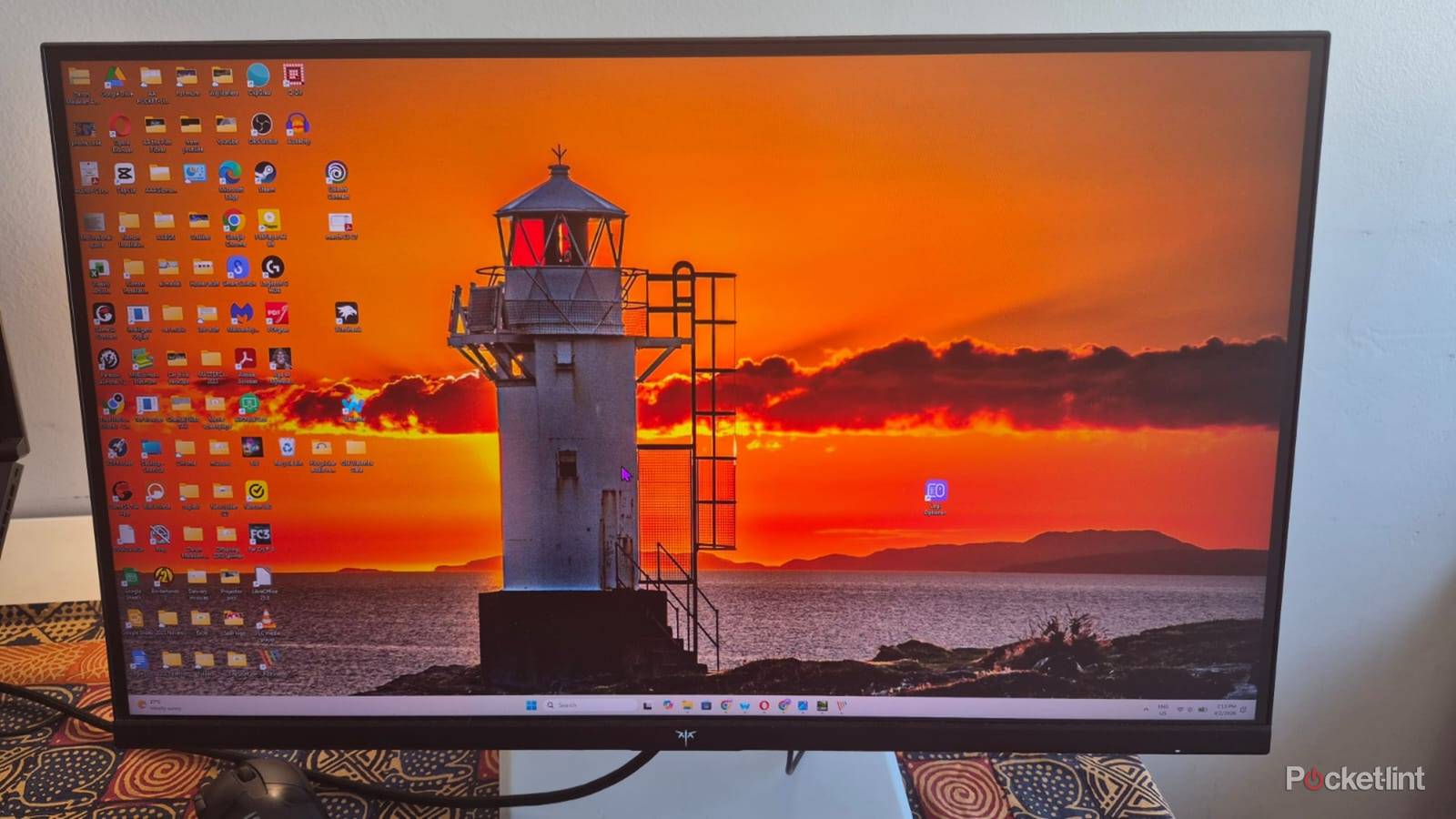
I love testing new monitors but need to change certain settings before I get started to improve my experience. As someone who started with an old CRT as my first monitor, I’m amazed at how far technology has come and enjoy the latest massive flat screens with OLED and mini-LED tech delivering mind-blowing visuals. These new monitors offer fantastic brightness and high refresh rates for gaming, but aren’t perfect out of the box.
They still need some tweaks and personalization to optimize their performance and usability. Most of the initial setting changes are one-offs, and you won’t need to adjust them again while using your monitor. Here are four monitor settings too many people forget to change.
Brightness
Find the best balance

The first thing I notice on a new monitor is the brightness. The default settings are usually too bright for me and I need to reduce it because the glare is uncomfortable to look at for long periods and causes eye-strain. That said, my monitor’s optimum brightness varies depending on the ambient lighting around me. Screen brightness of around 50% is usually adequate for me on most days. I often need to increase the brightness when I’m working outside in coffee shops on sunny days, because a darker display is barely visible.
My monitor’s optimum brightness varies depending on the ambient lighting around me.
Changing my laptop’s display brightness is as simple as right-clicking on the desktop and going to display settings. I can then adjust the slider up and down to increase or decrease the brightness. With external displays, I usually adjust the brightness via the onboard OSD settings or with the relevant app if it has one.
Visual Settings
Simple tweaks to improve performance

I always tweak the visual settings through the OSD menu to match my preferences. Some monitors offer presets, like movie or FPS you can try if you don’t want to dive into individual settings. I prefer custom settings and start with contrast. The contrast is the difference between how the monitor displays the darkest black and the whitest whites and makes a huge difference to how onscreen visuals look. I usually choose mid-range settings, so the images aren’t dark and grainy, or lose detail because they’re too bright.
Picture sharpness is the next setting I change, and it determines how the edges of objects look on the monitor. If the picture sharpness is too high, you’ll experience some graining and artifacts, and if it’s too low, images can look too rounded and blurry. The trick is to find a comfortable middle ground between the two which suits your preferences.
Color temperature varies between cool and warm and most people prefer a middle ground.
Color temperature varies between cool and warm and the sweet spot is somewhere in the middle. Cool temperature gives the screen a blueish fluorescent tinge, which could be great for watching movies, but can also cause fatigue and eye-strain. Warm gives the screen a reddish orange look, which distorts the colors and can reduce the detail. Some monitors have presets or sliders to adjust the balance between these two modes. Others have exact measurements with around 6500K considered the optimal balance for most users.
Refresh Rate and VRR
It’s all about speed

My monitor displays smoother and more fluid visuals when I increase the refresh rate. The refresh rate refers to how many times the display refreshes per second and more is better, especially when watching sports and movies, or playing fast-paced competitive shooters. To adjust my refresh rate, I first go to the Nvidia Control Panel to see what my GPU’s maximum output is. On my gaming laptop, 240Hz is the maximum. I then right-click on the desktop and click on Display Settings. I then scroll down and click on Advanced display. It will display the details of the specific monitor and I can choose my preferred refresh rate from the dropdown menu.
The refresh rate refers to how many times the display refreshes per second and more is better, especially when watching sports and movies, or playing fast-paced competitive shooters.
Variable Refresh Rate (VRR) technology like Nvidia’s G-Sync and AMDs FreeSync match the GPU’s frame rate to the monitor’s refresh rate to reduce screen tearing and stuttering when I’m playing games. I activate VRR on my monitor in the OSD menu, then enable it in the Nvidia Control Panel and ensure the Enable for windowed and full screen mode checkbox is ticked.
Physical Adjustments
Viewing angles matter

Modern monitors offer amazing adjustability, and it’s worth setting them up correctly for comfortable viewing. I usually work with a multi-display setup with my laptop as my primary display and a 27-inch gaming laptop as my secondary display. My laptop is usually on a stand and I adjust my secondary monitor’s height, so both displays are at the same level, and it’s easy to transition from one to the other.
Modern monitors offer amazing adjustability, and it’s worth setting them up correctly for comfortable viewing.
Having my two monitors parallel to each other doesn’t work for me because I dislike the wide field of view required to take everything it. I prefer facing one directly and having the other angled towards me so I can view it with minimal head movement. I typically prefer a flat monitor orientation if I can get it to eye level and only tilt it upwards if it has limited height adjustment. Everyone has different preferences, and it’s best to try different settings and positions until you find the one that’s best for you.