


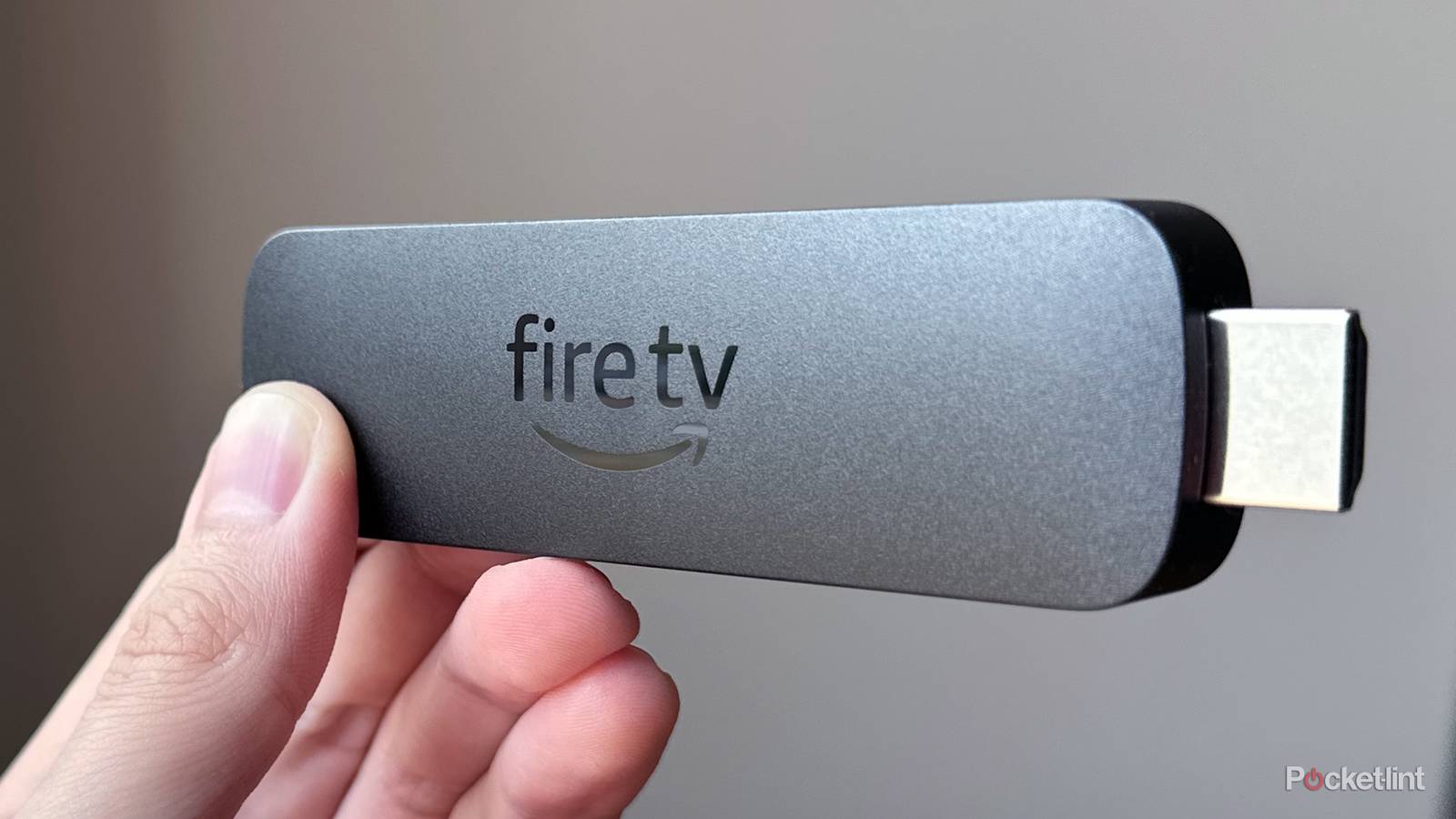
My Fire TV Stick 4K Max takes care of all the heavy lifting for streaming on my 4K LG TV. I first tried LG’s built-in webOS platform for streaming when I got it, but after using the 4K Max, I’ve never looked back. Using a Fire TV Stick for streaming is just way smoother, and it’s an upgrade I definitely don’t regret.
That said, while many people get a Fire TV Stick to upgrade their TV’s streaming experience, as I did, I think one aspect that often gets overlooked is upgrading the experience of using the Fire TV Stick itself.
One of my favorite features that Fire TV Sticks have is support for Bluetooth devices. Which means there are devices you can connect to your Fire TV Stick, which you may even already own, that you can easily pair with it to make your streaming experience even better. Here are a few gadgets I’ve connected to my Fire TV Stick that made it way more enjoyable to use, which I think you should give a try as well.

- Brand
-
Amazon
- Resolution
-
4K
- Audio codecs
-
Dolby Atmos
- RAM/storage
-
16 GB
Game controllers
You can play free games on your Fire Stick

One of the standout features of Fire TV Sticks is their ability to stream games from the cloud through apps like Xbox, Amazon Luna, and the recently launched Nvidia GeForce Now. While the Xbox app requires a subscription, Amazon Luna offers a selection of free games to stream if you’re a Prime member, and GeForce Now has an ad-supported free tier that lets you try out a ton of games without paying.
To play all these games from the cloud properly, Fire TV Sticks support Bluetooth game controllers. So if you have an Xbox or PlayStation controller lying around, you can easily connect it via Bluetooth and start gaming.
What’s nice is that a controller isn’t just for gaming, either. You can also use it to navigate the Fire TV interface. So even if you’re not planning to game much, it still has its uses.
Fortunately, pairing a controller is straightforward: head to Settings > Remotes & Bluetooth Devices > Game Controllers > Add New Game Controller. Put your controller into pairing mode, and it should show up on your Fire TV Stick so you can connect it.
Cloud gaming is supported on the Fire TV Stick 4K Select, 4K Plus, and 4K Max.
Bluetooth audio devices
You can connect your AirPods to your Fire Stick

Since I enjoy watching TV late at night, one feature I frequently use on my Fire TV Stick is the ability to connect Bluetooth headphones. This allows you to pair a device like AirPods and direct all the audio through them instead of your TV’s speakers.
I usually do this when I don’t want to disturb anyone, or when I’ve got my Fire TV Stick hooked up to a monitor at my desk. And it’s not just limited to headphones or earbuds; you can also connect Bluetooth speakers, which is especially handy if you’re using your Fire TV Stick with a projector or a TV setup outside in the summer.
Connecting a Bluetooth audio device is again straightforward and similar to pairing a controller. Just head to Settings > Remotes & Bluetooth Devices > Other Bluetooth Devices, put your device into pairing mode, and it should show up on your Fire TV Stick so you can connect it.
A wireless keyboard and mouse
It makes searching much easier

This isn’t just an issue with Fire TV Sticks, but if there’s one thing I hate doing on any TV, it’s slowly typing something letter by letter when searching for an app, a show, or a movie to stream. While you can use voice controls to search on many TVs, that’s not always very accurate either. However, one solution to this problem on Fire TV Sticks is the ability to connect a Bluetooth keyboard.
With a Bluetooth keyboard connected to your Fire TV Stick, you can use the keyboard to easily type in what you’re searching for, and also when you’re using the built-in Silk web browser. You can also use the arrow keys to navigate the interface. Additionally, you can hook up a mouse to your Fire TV Stick, though not every app supports mouse controls, so your mileage may vary.
As before, if you have a Bluetooth keyboard or mouse you want to connect to your Fire TV Stick, you can go to Settings > Remotes & Bluetooth Devices > Other Bluetooth Devices to pair them.
Ethernet adapter
Create a more reliable connection for your Fire Stick

This last gadget isn’t Bluetooth-related, but it’s still worth mentioning if you’re looking to improve your Fire TV Stick experience.
Because Fire TV Sticks are so compact, they rely entirely on Wi-Fi. So, if your Wi-Fi connection is spotty, you may run into issues like slow-loading apps or streams buffering, which can be extremely frustrating. One way around that is to use an Ethernet adapter, which lets you connect your Fire TV Stick directly to your router for a more stable connection.
The Ethernet adapter I’ve tested on my Fire TV Stick is the one Amazon sells for $15. It has two ports: an Ethernet port and a Micro USB port, which powers both the adapter and the Fire TV Stick itself. It’s a simple setup, but there is one catch — it’s limited to 10/100 Ethernet, meaning speeds top out at 100 Mbps.
So whether it’s worth it really depends on how good your Wi-Fi is. You can check that on your Fire TV Stick by going to Settings > Network and running a speed test for your Wi-Fi. If your Wi-Fi speeds are well below 100 Mbps, switching to Ethernet with an adapter could make a noticeable difference. But if you’re already getting speeds higher than that, you likely won’t see much benefit besides a more reliable connection.

- Brand
-
Amazon
- Input
-
Ethernet
- Output
-
Micro USB