


I regularly free up space on my Windows laptop because the drives get filled with massive game installations and phone backups. Many laptops offer around 500GB to 1TB of storage space in their standard configuration, which may or may not be enough depending on your use. My laptop has a 1TB SSD partitioned into two drives, which isn’t enough for my data storage needs.
Freeing up space is critical if I want to install more titles and can also improve performance. I also test countless Windows apps every month and regular cleaning means I can get rid of the ones I won’t use again, and declutter my system. It doesn’t take long, and I follow these four easy steps to have more free space on my laptop.
Disk Cleanup
A simple and effective tool

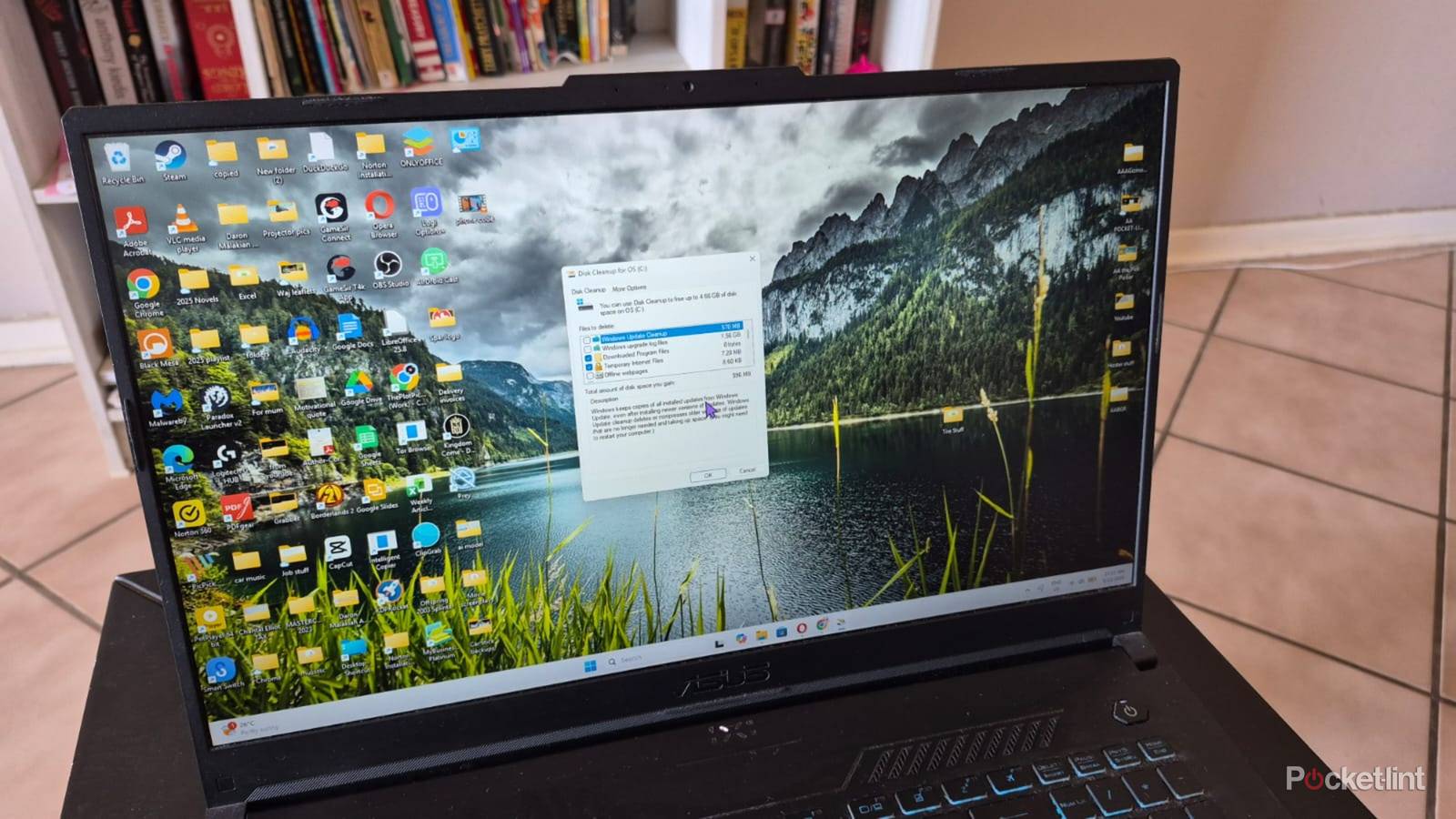
The Windows 11 Disk Cleanup tool is the easiest place to start. This simple and user-friendly utility lets me choose which drive to clean, then automatically scans for temporary files, error reports, and other redundant data in my system. It then displays these files in a list and I can choose which ones to delete. I usually run it on both my drives to remove junk files and other redundant information.
Running this app is as easy as typing Disk Cleanup and pressing the Enter key. I then choose which drive I want it to scan and press the OK button. The app will display the data available for deletion and a summary of the space I can free up. I then check the tickboxes and click the OK button to remove the files. The Disk Cleanup tool usually deletes a few gigabytes at the most, and I move to the next steps to free up more space.
If you don’t want to do a manual cleanup using this tool, you can activate the Storage Sense app.
If you don’t want to do a manual cleanup using this tool, you can activate the Storage Sense app found in System => Storage which will do it automatically. It works with a simple slider and lets me choose how often it should run and which files to delete. I can also program Storage Sense to automatically delete files in my recycle bin and downloads folder after set durations.
Uninstall programs
There’s bound to be some you don’t use

Removing unwanted games and other large apps is one of the best solutions for freeing up space on my Windows laptop. I click on Settings=>Apps=> Installed apps to do this. A window opens displaying a list of all the apps installed on my PC with useful information, like the size and installation date.
Removing unwanted games and other apps is one of the best solutions for freeing up space on my Windows laptop.
I then scroll through the list to find apps I don’t need that are taking up space on my drive. To remove them, I click on the menu button on the right and choose the Uninstall option. A confirmation window pops and I click on Uninstall again. Certain games don’t display their size in the Installed apps menu, so I open Steam, right-click on the title name, and click on Installed files. It will display how much space the game takes up on my drive and I can then uninstall it if I wish.
Copy data to the cloud or external drive
Save storage for critical data

I regularly copy files and folders off my laptop and onto the cloud and external drives to free up space and create backups. I use my OneDrive account to sync my desktop, photos, and other folders with the cloud so I can easily restore them if my laptop gets stolen or the drive crashes. My Google Drive acts as a secondary fail-safe for backing up my photo library and sensitive documents.
I regularly copy files and folders off my laptop and onto the cloud and external drives to free up space and create backups.
It’s worth copying data onto external drives in case I have account issues or lose access to my cloud services. It’s also handy because I can access my saved data anywhere without requiring an internet connection. Most modern external SSDs also include encryption and password protection to prevent unauthorized access. I regularly free up space on my laptop by copying information I don’t want to delete onto external drives, so I know it’s safe and easily available later.
Cleanup Recommendations
Easily find unused files

Cleanup Recommendations in Windows 11 is another handy utility for freeing up disk space. It’s accessible via the System => Storage menu and helps me find and delete files I hardly use. It can supersede the Storage Sense settings and identify how much space I can gain by deleting information in my Downloads folder and Recycle Bin. The advanced options work in a similar fashion to Disk Cleanup and provides a list of temporary files, thumbnails, and other files to delete.
The advanced options work in a similar fashion to Disk Cleanup and provides a list of temporary files, thumbnails, and other files to delete.
I like that Cleanup Recommendations automatically list new and recent unused files, as well as unused apps and files synced to the cloud which I can delete. It makes my life easier, so I don’t need to waste time manually navigating through folders to delete files individually.