


A lot has been said in recent months regarding the state of Microsoft’s Windows 11 operating system. The PC platform itself has been alive and well for over four decades, and with it has come various periods of prosperity and decline. Most recently, however, controversies have sprung up surrounding the latest incarnation of the OS and its stability, its performance, and its heavy-handed approach to artifical intelligence.
Microsoft, in turn, has come out publicly to state that it’s aware of these contentions, and that it has plans to address “pain points” within the platform throughout 2026. This is a good sign, to be sure, but it doesn’t change the fact that the PC is in a far more tumultuous market position today than any other time in recent history.
Apple has just released its $600 MacBook Neo, which might just take a chunk out of Windows’ dominance in the mid-range sector, and Valve’s Linux-based SteamOS is giving PC gaming a real run for its money. Google, meanwhile, is hard at work building out Aluminum OS — its next-generation version of ChromeOS that runs Android under the hood, and that will presumably power an upcoming fleet of Android / Chromebook hybrid PCs later this year.
ChromeOS as we currently know it may not be long for this world, but it’s still a compelling operating system.
Speaking of ChromeOS, the legacy version of the platform is still being shipped on in-market Chromebooks, and it continues to dominate the education sector in a way that Windows 11 simply doesn’t. ChromeOS as we currently know it may not be long for this world, but it’s still a compelling operating system by virtue of its lightweight nature and its pick-up-and-go simplicity.
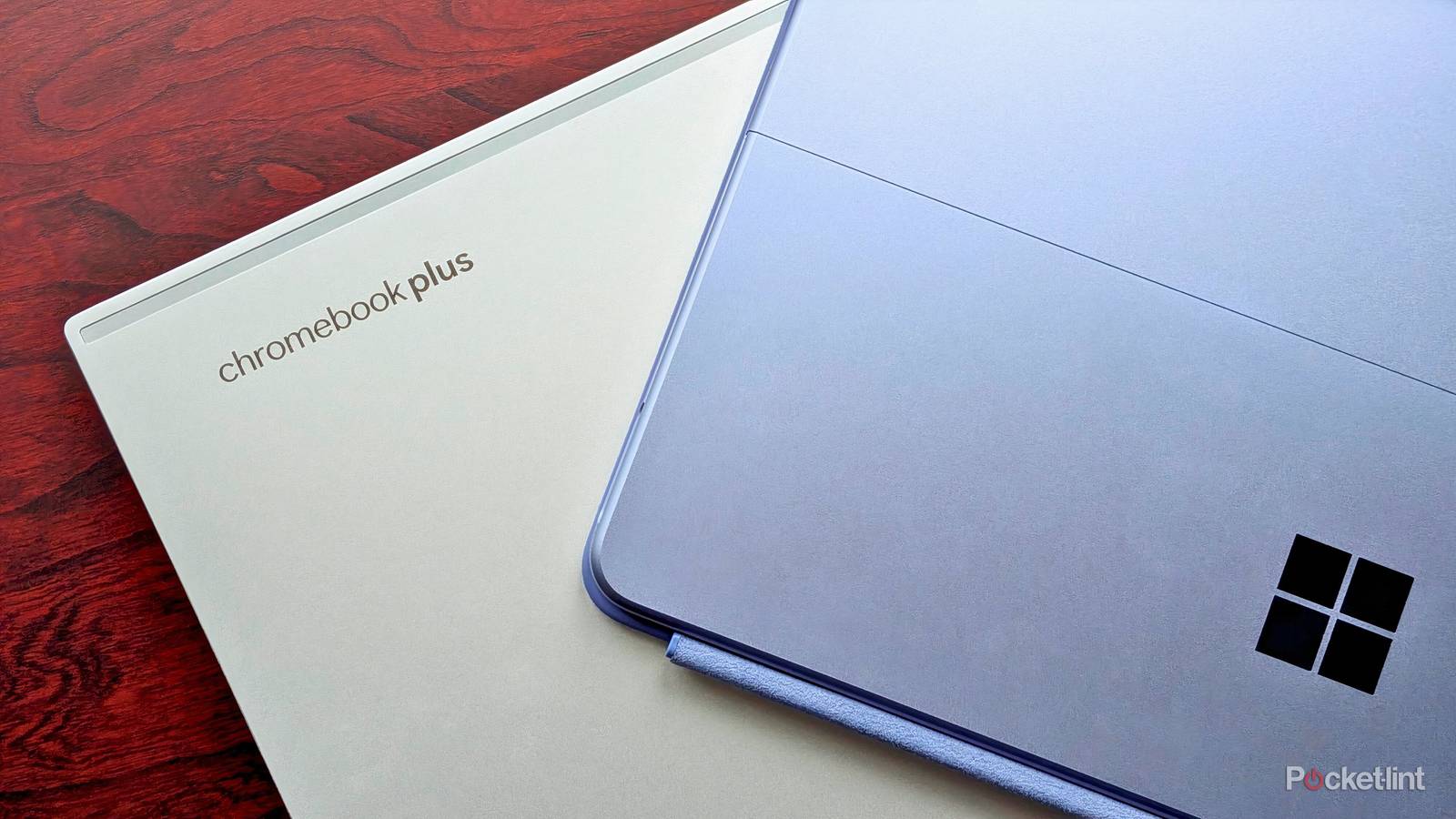
With this in mind, and as someone who has extensively used Windows throughout the years but has never touched ChromeOS, I decided the time was now or never to compare the two PC platforms side-by-side. By doing so, I’ll have a baseline to work with in advance of Aluminum OS, while also learning more about each platform’s respective pros and cons.
While I’m still fairly early in my ChromeOS acclimation period, I’m so far enjoying the OS, with its tight-knit integration with Android smartphones, its speedy interface design, and its lack of old-school desktop bloat. That being said, several ChromeOS deficiencies have already stood out to me as well, including the following three attributes in particular.
Customizability
ChromeOS is less flexible than Windows 11

When I first set up my ChromeOS-powered laptop of choice, the Asus ExpertBook CB54 Chromebook Plus, I was surprised by just how limited its operating system is in terms of its customization potential. Sure, there were a few quick tweaks I was able to configure right away to make myself feel more at home, but, by and large, Windows is simply the more flexible PC platform of the two.
On Windows, I have far more control over the look and feel of the system, with more say over how the Start Menu behaves, which program icons can live in the system tray area, my accent colors, and various other aspects of the experience. Windows 11 has garnered a reputation for offering less flexibility than its immediate predecessor, but it’s still a step up from ChromeOS in so many ways that actually matter.
Ironically, ChromeOS does offer the ability to move the taskbar (shelf) to the left or right side of the screen, which is something Windows 11 users have been clamoring for for the better part of half a decade. Thankfully, as reported by Windows Central, it looks like Microsoft is on track to bring this highly-requested feature back to the PC sometime this year, plugging this particular feature disparity once and for all.
App compatibility
ChromeOS can’t run legacy PC programs

Windows 11 is marred by decades of legacy code and other desktop-era bloat from the past, but the upside of this is that it enjoys broad compatibility with PC programs and games extending back to the 20th century. Everything from classic Win32 programs to the latest-and-greatest WinUI 3-based WinApp SDK applications are supported, giving Windows a massive leg up over its PC competition.
Over on the ChromeOS side of things, web apps are the name of the game. The Chrome browser makes it easy to “install” progressive web apps (PWAs) onto the system, which then integrate into the system in a native-esque fashion. Of course, the Chrome browser is also available on Windows, and Microsoft too has spent years embracing PWAs via its own Edge browser.
ChromeOS also has access to the Google Play Store, allowing for the downloading and installation of millions of Android applications via a built-in framework container. The problem is that most Android apps still aren’t optimized for large, landscape-oriented displays, and the lack of proper under-the-hood Android also impacts performance to a slight degree. Even still, having access to Android apps is a great bonus, especially when you consider Microsoft’s failed attempt at doing the same thing with its Android Subsystem for Windows.
File management
Files is far less robust than File Explorer

ChromeOS comes with a dedicated Files app for managing documents, photos, videos, audio, and more, but it’s a far cry from what we get in Windows 11’s File Explorer. File Explorer has years of desktop PC development to its name, and it features advanced features like tabs for multitasking, robust file sorting options, and tons of features designed for power users.
To be clear, Files on ChromeOS isn’t a bad application. The experience is streamlined and easy to navigate, and it’s cloud storage-centric approach makes a ton of sense in the modern context. The fact of the matter, however, is that Microsoft’s File Explorer is simply a more powerful tool for getting serious local file management done in a traditional PC environment.