

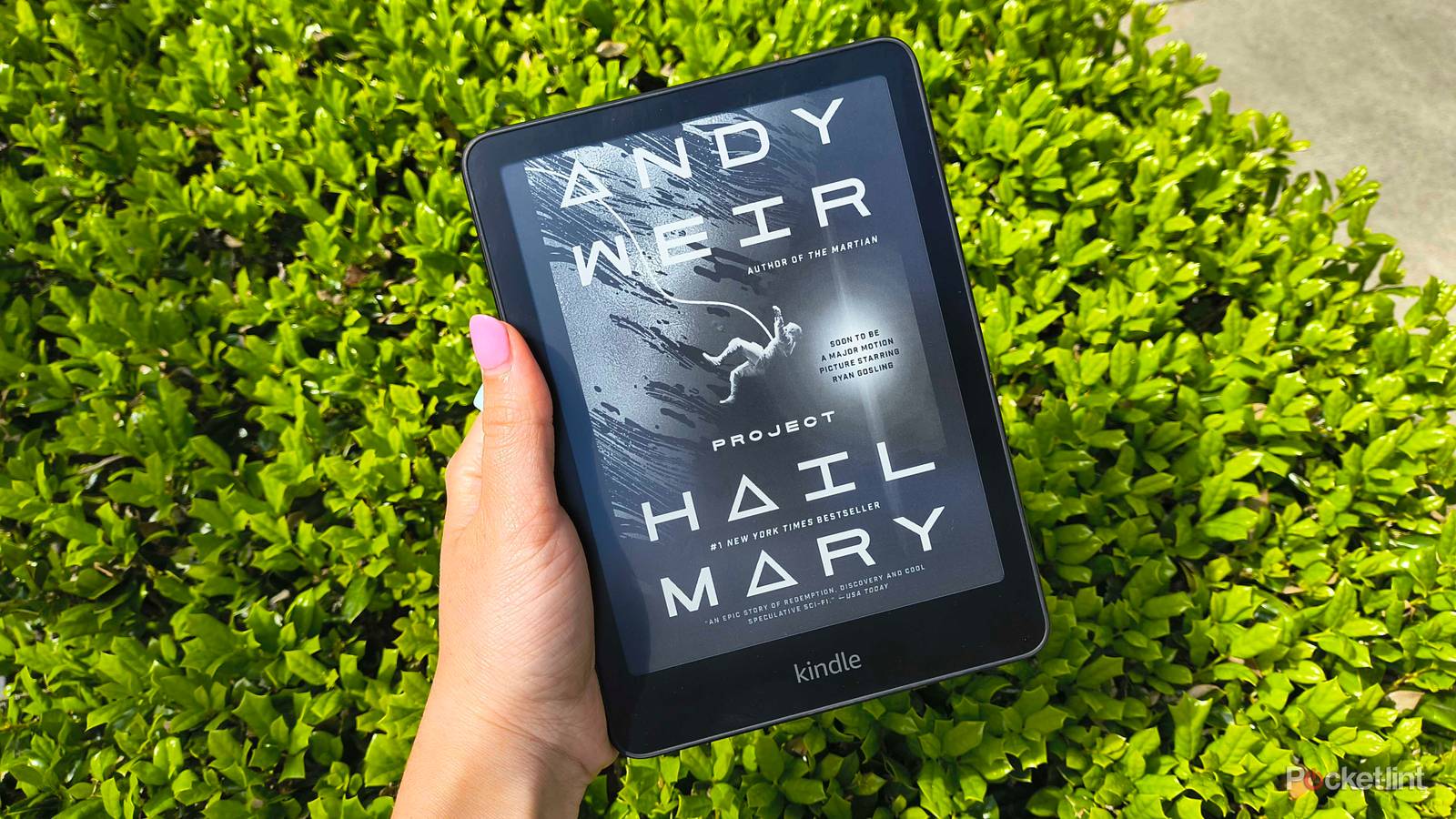
E-readers are some of the most intentional devices in my tech stack. While we have do-it-all devices like laptops, phones, and tablets, e-readers cut the noise and let you focus on a single task: reading.
Because they’re meant to serve that one simple purpose, they don’t come with all the bells and whistles that ‘smarter’ tech is loaded with. That being said, there are a handful of settings you can tweak to optimize your reading experience in general — especially on Kindles. Here are the three settings I use the most that I think every Kindle user should use every time they turn on their device.

- Storage
-
16GB
- Brand
-
Amazon
- Screen Size
-
7-inch E-ink (300ppi)
- Connections
-
USB-C
Landscape mode
A change of pace

Unless it’s a children’s picture book or a coffee table art piece, the chance of finding a normal book with a landscape layout is slim to none. When you pick up a physical novel, you’re stuck with portrait orientation, and most readers are okay with that. But as soon as you start reading on an e-reader (like a trusty Kindle Paperwhite), the digital format offers a lot more freedom than printed pages could ever dream of.
On your Kindle, if you tap the top of your screen and then tap Aa and go to the Layout tab, you’ll see a second option under orientation that will let you switch your e-book to landscape mode. When you tap out of the menu, the words will travel long-ways across your screen. But why would you want to change it up like this?
Besides a refreshing new way to read, landscape mode is especially useful for users who prefer larger fonts. In portrait mode, larger fonts leave less space on each line, which means your eyes will have to jump all over your screen a lot more than usual. Landscape mode inherently makes lines longer, which means less gymnastics for your eyes. Personally, I love putting my Kindle in landscape mode to read on my side when I’m winding down after a long day.
Page numbers
Don’t let the ending sneak up on you

When you’re reading a physical book, it’s easy to tell when it’s about to end — you see it and literally feel the dwindling pages under your hand. If you’re a dog-earer like I am, you can see how much you have left even when the book is closed. Before I enabled page numbers
on my Kindle, I can’t tell you how many books ended more abruptly than I anticipated, leaving something that tasted like unfairness in my mouth.
E-books are still books, pages and all. Maybe you like the feeling of not knowing where you are in a novel, but I personally prefer to have my bearings and an idea of my location when I’m reading. It’s not a feeling you can escape when you’re reading a regular book, but I don’t think this is something readers should turn off on their Kindle just because they can. Page numbers are a natural part of reading, and unless you’re genuinely keeping track of them (which, I don’t know why you would, unless it’s a reading assignment you’re dreading), they’re small enough to fade into the background.
To turn on page numbers, simply tap the bottom-left corner of your Kindle’s screen until page numbers show up. It will cycle through several options: minutes left in the chapter, time left in the book, a location reference, and nothing at all. If you do want to get rid of reading progress in general (including the percentage read in the bottom-right corner) choose the blank option.
Clock
Time isn’t an illusion

Gone are the days when I used to stay up until the birds started chirping, reading under the covers with a flashlight to hide from my parents. There were worse things your kid could’ve been doing with her summer break, but still — I wonder if that’s why I’m such a night owl to this day. Those were the days of zero alarm clocks or responsibilities demanding my attention, and when I could dedicate an entire night to binge-reading. Now, staying up till 2AM on a weeknight is like self-imposed jet lag — completely unsustainable for us 9-to5ers (who also freelance outside the workday).
It’s so easy to get sucked into a good story, and even easier to lose track of time while you’re doing so. Just like page numbers, your Kindle’s clock is subtle but essential for responsible reading. Otherwise, we’d all miss the lunch reservation or sleep through our alarms. Everyone should have it on unless you’re still in those glorious carefree days when time is still a construct, and you can stay up all night long reading Percy Jackson.
To turn on your Kindle’s clock, tap the top of your screen and select Aa. Under the More tab, you’ll see an option called Show clock while reading. Turn it on, and you’ll see the clock appear in a tiny font at the very top-center of your screen.