



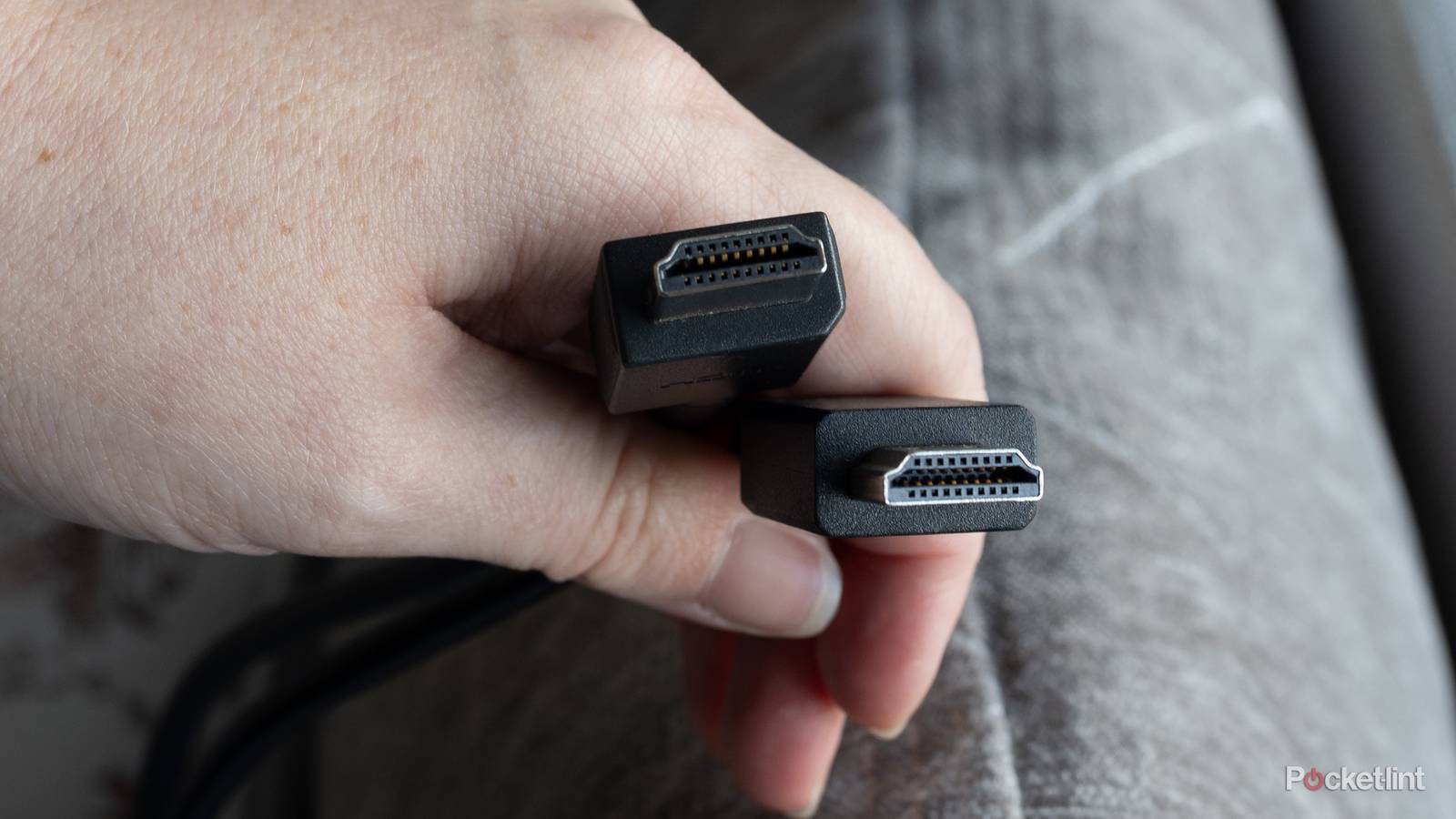
Unless you’re going to use your TV as-is out of the box, it’s essential to become familiar with HDMI. It’s not just how media streamers, cable boxes, and game consoles connect to your TV — it’s how many speaker systems connect as well. If you’re still using a soundbar based on an optical cable or 3.5mm stereo, you’re probably not getting the most out of your TV.
Part of understanding HDMI is knowing what can go wrong with cables, ports, and settings. In this guide, I’m going to focus on specific errors rather than symptoms, for the simple reason that there’s a lot of overlap — there might be any number of causes behind a black or flickering screen, for example. You may even be able to prevent some problems before they begin if you’re aware of them.
Passive cables for long distances
Avoid going long whenever possible

Hardware makers often do a poor job of foregrounding the distance limits of HDMI. If you exceed those limits, you’re liable to run into signal interruptions, or audio and video failing to appear in the first place.
Most HDMI cables are “passive,” meaning that they don’t provide any help for the data they’re carrying. That’s usually not a barrier — you should be fine up to ranges of about 10 feet (3 meters). Beyond that point, though, there’s an increasing risk of dropouts, and you certainly shouldn’t use a passive cable longer than 20 feet (6 meters), at least without other gear in tow.
You should be fine up to ranges of about 10 feet (3 meters).
You’ve got three options if you need to run a long connection. The first is choosing an “active” cable, which can boost signals up to 100 feet (30 meters) or even 300 feet (over 91 meters), depending on whether they use copper or optical transmission. Active cables are more expensive than passive ones, but they’re the most straightforward solution.

Quiz
HDMI 2.0 and its history
Trivia challenge
Think you know everything about the standard that supercharged your home cinema? Put your knowledge to the test.
HistoryStandardsVideoHardwareBandwidth
In what year was HDMI 2.0 officially released?
Correct! HDMI 2.0 was released in September 2013 by the HDMI Forum. It arrived just in time to support the growing demand for 4K content and displays entering the consumer market.
Not quite. HDMI 2.0 launched in September 2013. This timing was deliberate, as manufacturers needed a standard capable of handling 4K resolution at smoother frame rates than its predecessor could manage.
What is the maximum bandwidth offered by HDMI 2.0?
That’s right! HDMI 2.0 delivers a maximum bandwidth of 18 Gbps, a significant jump from HDMI 1.4’s 10.2 Gbps. This extra headroom was essential for supporting 4K at 60 frames per second.
Not quite. HDMI 2.0 supports up to 18 Gbps of bandwidth. For comparison, its predecessor HDMI 1.4 was capped at 10.2 Gbps, which wasn’t enough for smooth 4K playback at 60fps.
What is the maximum frame rate HDMI 2.0 supports at 4K resolution?
Correct! HDMI 2.0 can handle 4K resolution at up to 60fps. This was a major improvement over HDMI 1.4, which could only push 4K at 30fps — a limitation that made motion look choppy on large screens.
Not quite. The answer is 60fps. HDMI 1.4 had already introduced 4K support but was limited to 30fps, and HDMI 2.0 doubled that frame rate, making a huge difference for sports and gaming content.
Which organisation took over governance of the HDMI specification from HDMI Licensing LLC, leading up to the release of HDMI 2.0?
Spot on! The HDMI Forum was established in 2011 and took over development of the HDMI specification, releasing HDMI 2.0 as its first major standard in 2013. It brought a broader group of industry members into the process.
Not quite. The HDMI Forum was the body responsible. Founded in 2011, it replaced the original HDMI Licensing LLC structure for specification development, opening membership to a wider range of consumer electronics companies.
How many simultaneous audio streams does HDMI 2.0 support?
Correct! HDMI 2.0 supports up to 4 simultaneous audio streams, an upgrade over earlier versions. This made it better suited to multi-room audio setups and more complex home theatre configurations.
Not quite. HDMI 2.0 can carry up to 4 simultaneous audio streams. This was one of several audio improvements in the specification, alongside support for up to 32 audio channels in total across those streams.
What sub-revision of HDMI 2.0 introduced support for HDR (High Dynamic Range) video?
Well done! HDMI 2.0a, released in April 2015, was the revision that added static HDR metadata support. This allowed TVs and displays to receive HDR content from sources like Ultra HD Blu-ray players and streaming devices.
The correct answer is HDMI 2.0a. Released in 2015, this update added static HDR support to the standard. A later revision, HDMI 2.0b from 2016, then extended that with support for the HLG (Hybrid Log-Gamma) HDR format.
HDMI 2.0 uses the same physical connector type as which earlier version of HDMI?
Correct! One of the great conveniences of HDMI 2.0 is that it uses the same physical connectors introduced with the original HDMI 1.0 specification. That means existing cables and ports are physically compatible, though older cables may not support the full bandwidth.
Not quite — the answer is all previous HDMI versions. HDMI has always maintained physical connector compatibility going back to version 1.0. The key caveat is that older cables may not have the bandwidth capacity to carry HDMI 2.0 signals reliably.
Which colour space format did HDMI 2.0 add support for, enabling more vivid colours on compatible displays?
Excellent! HDMI 2.0 introduced support for the Rec. 2020 colour space, which covers a far wider gamut than the Rec. 709 standard used for HD content. This laid the groundwork for truly vibrant, lifelike images on 4K HDR televisions.
Not quite. The answer is Rec. 2020, also known as BT.2020. This wide colour gamut standard was a key feature of HDMI 2.0, enabling displays to reproduce colours much closer to what the human eye can perceive compared to older HD standards.
Your Score
/ 8
Thanks for playing!
If you don’t want to buy a new cable, you can buy a signal booster/repeater, or make the leap to wireless HDMI. Be careful either way — you’ll need to match a repeater to the HDMI version you’re using, and wireless HDMI is often severely limited in terms of audio and video formats. There’s also the risk of introducing signal issues by switching to wireless instead of solving them.
Version compatibility conflicts
Never stop checking new ports and cables

I can’t stress this point enough. Although it may not matter much which ports or cables you use for a DVD player, just about everything else requires a matching or better HDMI version to get the most out of it. When one or more points in an HDMI chain are outdated, a peripheral will probably still work, but not optimally.
The most sensitive devices in this regard are game consoles and computers. These are running not only at high resolutions, but at high frame and refresh rates, sometimes alongside technologies like 4K, HDR (high dynamic range), and/or Dolby Atmos surround sound. HDMI 2.0 can’t handle 4K refresh rates over 60Hz, or often dynamic HDR formats like HDR10+. If you’re a gamer, you should automatically be using HDMI 2.1 or later if you can. A mismatch could result in visual artifacts at faster refresh rates.
When one or more points in an HDMI chain are outdated, a peripheral will probably still work, but not optimally.
Any HDMI-based audio accessories should be connected to a port marked for ARC or eARC, the latter also tied to HDMI 2.1. They may not work otherwise. eARC is preferable if you’ve got a compatible speaker, but don’t worry — you can connect an ARC-only product to an eARC port (or vice versa) and still get ARC-level features like compressed Atmos.
If you’ve got a limited number of ports with 2.1 or higher, you can get around this by buying an HDMI switch, preferably one with its own remote. Make sure the switch meets your version requirements as well.
HDCP handshake failures
Anti-piracy tech strikes again

Media corporations remain obsessed with piracy, working on the assumption that preventing it will translate into more sales. I’m not completely unsympathetic, but in many cases, all it does is briefly slow pirates down while causing issues for law-abiding individuals.
Case in point: HDCP, meant to deter video piracy by blocking HDMI signals without the right licensing and encryption keys. Normally this works seamlessly — but if there’s a mismatch between HDCP versions, you may get a black screen on your TV, no matter if you’ve paid for the thing you’re trying to watch. In other cases, you may get a lower resolution than your TV supports.
If there’s a mismatch between HDCP versions, you may get a black screen on your TV, no matter if you’ve paid for the thing you’re trying to watch.
The latest version is HDCP 2.3, and vital for setups that can take advantage of HDMI 2.1 features like 8K or dynamic HDR. The minimum for 4K at 60Hz is 2.2, and 1.4 is limited to either 1080p or 30Hz 4K.
If you suspect a handshake failure, your first step should be to check the supported HDCP versions on impacted ports, cables, and devices. If you’re using a switch, check that as well. Some units may not support HDCP at all.
You may be able to fix handshake errors with firmware updates, settings changes, and/or power-cycling the associated hardware (unplugging it for 30 seconds to a minute, then plugging it back in). Otherwise, though, you’ll need to swap out the equipment using outdated HDCP tech.
Loose, damaged, or defective cables
A multitude of possible symptoms

This might be a relatively obvious concern, but it’s important to consider if you’ve ruled out other problems. It’s not merely about getting things working again — if a cable is damaged or defective, it can pose a fire hazard, say if a power surge or short-circuit causes it to overheat and melt.
Potential signs of a damaged or defective cable might include images with flickering, noise, or sparkles. If a cable is in truly terrible shape, it won’t deliver a signal at all, but that could of course be a sign that a cable is loose too.
Always err on the side of caution. It’s not worth risking your safety over something you bought for $8 online.
Examine both ends of an affected connection. If the cable is visibly loose, you’ve found the culprit, in which case you should screw it back in tightly (though not excessively so). It may still be too loose if it looks fine — but before you try tightening anything, unplug the cable and check it for bent pins, grime, or scorch marks. Scan your ports while you’re at it.
Stop using anything scorched right away. Likewise, if an HDMI cable looks frayed, it may be time to jettison it if any internal wires are exposed and in rough shape.
Some cables are fixable, naturally. Debris can be cleaned, frayed cables can be wrapped in electrical tape, and bent pins can be adjusted using tweezers or pliers. Always err on the side of caution, though. It’s not worth risking your safety over something you bought for $8 online.